

How to Plane: For enterprise teams
Set up Plane across your organization with common governance, clear visibility, and enough flexibility for teams to work in the way that suits them.
This guide is for CTOs, Heads of Engineering, IT and Platform teams, and Workspace Admins responsible for setting up and rolling out Plane across a large organization.
By the end of this guide, you will have a practical model for choosing a deployment, setting up access, structuring workspaces, migrating teams, standardizing shared processes, and rolling Plane out across the organization.
The goal is not to make every team work the same way. It is to give the organization a shared source of truth while letting every team work their own way.
A useful rule: Standardize what needs to be understood across the organization. Let teams decide what only affects their own work.
If you are setting up Plane for a smaller organization, see For startups or For growing teams instead.
Plan the rollout
Start with the foundation, test it with one team, and expand from there.
A practical rollout looks like this:
- Set up identity, access, and security.
- Choose the deployment and workspace structure.
- Define the standards teams will share.
- Migrate one representative team.
- Fix what you learn during the pilot.
- Add teams in manageable groups.
- Connect the tools teams already use.
- Create clear intake paths.
- Set up leadership reporting.
- Add workflows and automation where they remove manual work.
- Introduce AI after permissions and governance are in place.
Bring the Security team into the process from the beginning. Include the platform or infrastructure team before migration, especially for self-hosted deployments and organization-wide integrations.
The first team should be representative of the wider organization, but not under pressure from an immediate deadline. Document the decisions, problems, and changes that come out of the pilot. Use those lessons to improve the next phase of the rollout.
Tip: Avoid starting with either the simplest team or the most complicated one. Choose a team whose work, permissions, and integrations resemble what most teams will need.
Choose the right Plane plan
The Business plan covers many of the workflows in this guide, including advanced work management, custom properties, project templates, dashboards, intake, customers, and knowledge management.
Enterprise Grid is the better fit when the organization needs centralized governance, granular access control, LDAP support, API-enabled audit logs, multiple workflows and approvals, private or managed deployments, or migration and implementation support.
Enterprise Grid includes:
- Granular access control
- Custom roles and permission schemes
- Multiple workflows and approvals
- LDAP support and group synchronization
- API-enabled audit logs
- Private and managed deployment options
- Migration and implementation services
- Enterprise support
- Flexible AI credits and usage controls
The right plan depends on the controls and deployment model the organization needs, not headcount alone.
Note: Feature availability can vary by plan and deployment. Check the current Plane pricing page before finalizing your rollout.
Choose a deployment option
Plane can be deployed in three ways:
- Cloud: Plane manages the infrastructure and updates.
- Self-hosted: Plane runs in your organization's infrastructure.
- Air-gapped: Plane runs in an isolated environment with restricted or no external network access.
Choose based on your security, infrastructure, network, and data requirements.
| Cloud | Self-hosted | Air-gapped | |
|---|---|---|---|
| Infrastructure, capacity, monitoring, incident response | Plane | Yours | Yours |
| Upgrades | Automatic | You schedule and test | You schedule, offline |
| Backups | Automatic | Yours, including recovery-testing | You, and you prove it |
| SSO | Business and above | SAML and OIDC from Pro and above | SAML and OIDC included |
| Network egress | Required | Required | None |
| Best when | No hard constraint | Residency, policy, or a contract requires you to control the deployment | Isolation is a hard requirement |
Self-hosting gives the organization more control, but it also creates ongoing responsibility for deployment, upgrades, backups, monitoring, and recovery. Review the self-hosting documentation before deciding whether your team can operate the deployment over the long term.
Before choosing a deployment, confirm:
- Where data must be stored
- Whether outbound network access is permitted
- Who will operate and upgrade the instance
- How backups and recovery will work
- Which integrations the deployment must support
- Whether approved AI providers can be accessed
- What availability and support commitments are required
1. Identity, access, and governance
Set up access before inviting teams or importing their work.
Plane should fit into the identity and security systems the organization already uses. Retrofitting those controls after rollout creates avoidable cleanup.
Connect your identity provider
Verify the organization's domain and configure the approved authentication method.
Depending on the plan and deployment, Plane supports enterprise identity options such as single sign-on, LDAP, and identity-provider group sync.
Directory-driven access makes onboarding and off-boarding easier to manage. It also reduces the number of permissions administrators need to maintain manually.
Before rollout, test:
- Sign-in for each required user group
- Group and role mapping
- New employee provisioning
- Role changes
- Employee off-boarding
- Guest access
- Administrator recovery access
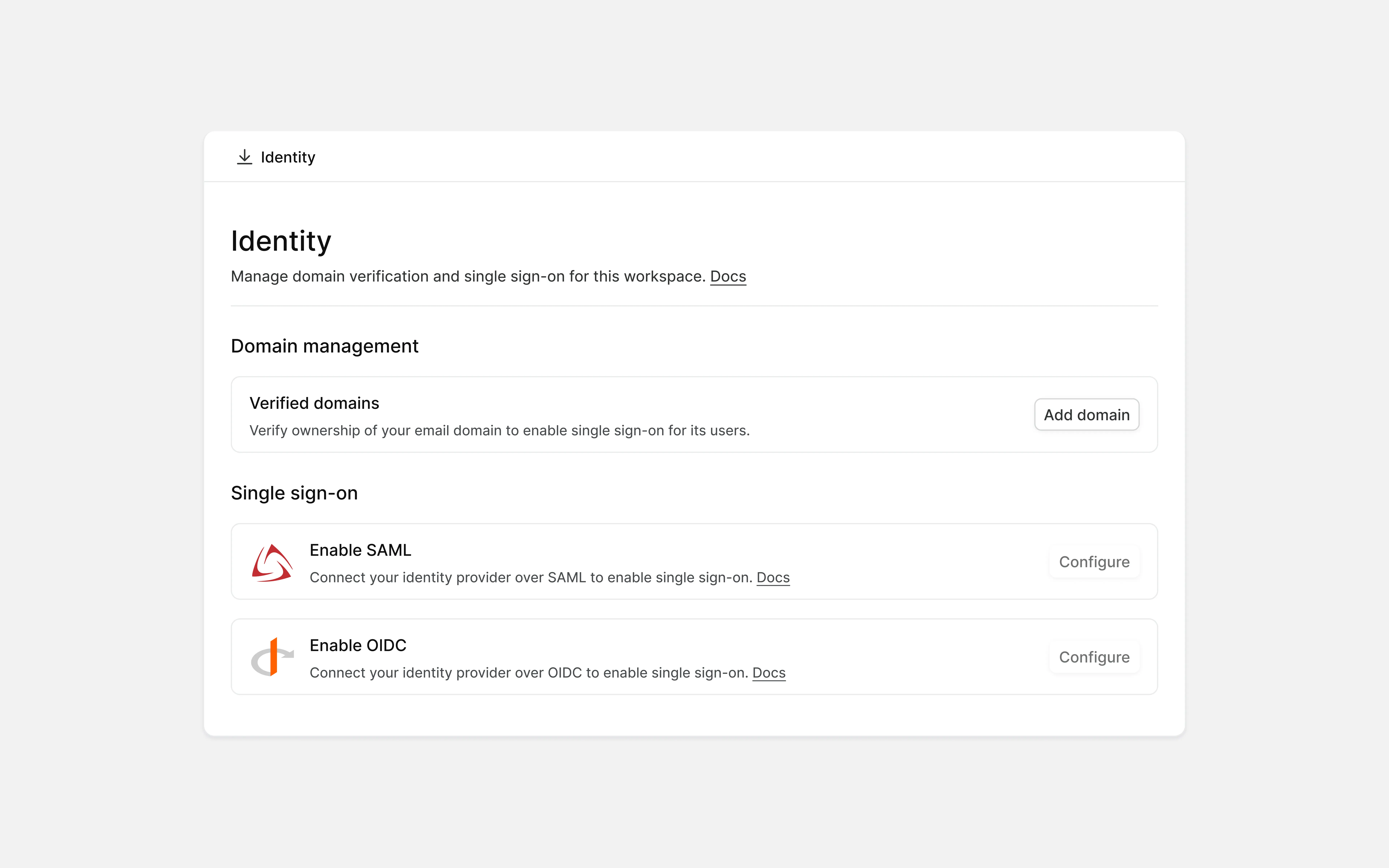
Tip: Test off-boarding as carefully as onboarding. Confirm that removing someone from the identity provider removes the access you expect it to remove in Plane.
Design roles around responsibilities
Plane uses roles and permissions at the workspace, teamspace, and project levels.
Default roles cover common access patterns. Enterprise Grid organizations can use Granular Access Control to create custom roles from reusable permission schemes.
RBAC is the default. Every user holds a role, either a system-defined one (owner, admin, member, guest, contributor, or commenter) or a custom one, and that role carries a fixed set of permissions. All plans include the system-defined roles.
GAC unlocks custom roles, available on Enterprise Grid only. A role is what you assign to a user. A permission scheme is a named, reusable bundle of permissions that a role is built from. A custom role can combine one scheme or several, and its effective permissions are the union of everything attached to it, for example, a "Release Manager" role built from a Contributor scheme plus a custom Release Publishing scheme.
A practical role model might look like this:
| Role | Typical responsibility |
|---|---|
| Workspace owner | Organization-level ownership, billing, and critical settings |
| Workspace admin | Members, projects, integrations, and workspace configuration |
| Project admin | Project configuration, membership, and delivery oversight |
| Contributor | Creating and updating project work |
| Commenter | Reviewing and commenting without changing project work |
| Guest | Limited access to selected projects |
| Security reviewer | Reviewing configuration, access, and audit activity |
Keep the number of custom roles manageable. If two roles have nearly identical permissions, they probably do not need to be separate.
Tip: Name roles after responsibilities, not individuals or temporary organizational structures. "Security Reviewer" will remain useful longer than a role named after a person.
Keep external access limited
Contractors, vendors, customers, and other external collaborators rarely need the same access as employees.
Give each external user access only to the projects and actions required for their work. Decide whether they need to create work, edit it, comment, or simply follow progress.
Review external access regularly. Project completion, contract changes, and extended inactivity are useful review points.
Note: Document who can invite external collaborators and who is responsible for removing them. Guest access should not become a permanent workaround for unclear access policies.
Set it up to be auditable
Define audit requirements before rollout.
Agree on:
- Which administrative and security-sensitive actions need to be reviewed
- Who reviews audit activity
- How often access reviews happen
- Which events should reach existing security tools
- Whether logs need to be exported
- What records are required during an incident investigation
Enterprise Grid provides workspace audit logs with time-stamped records of sign-ins, membership changes, role changes, settings changes, integration activity, and other security-sensitive events. Workspace Owners and Admins can filter and export the logs.
Workspace audit logs
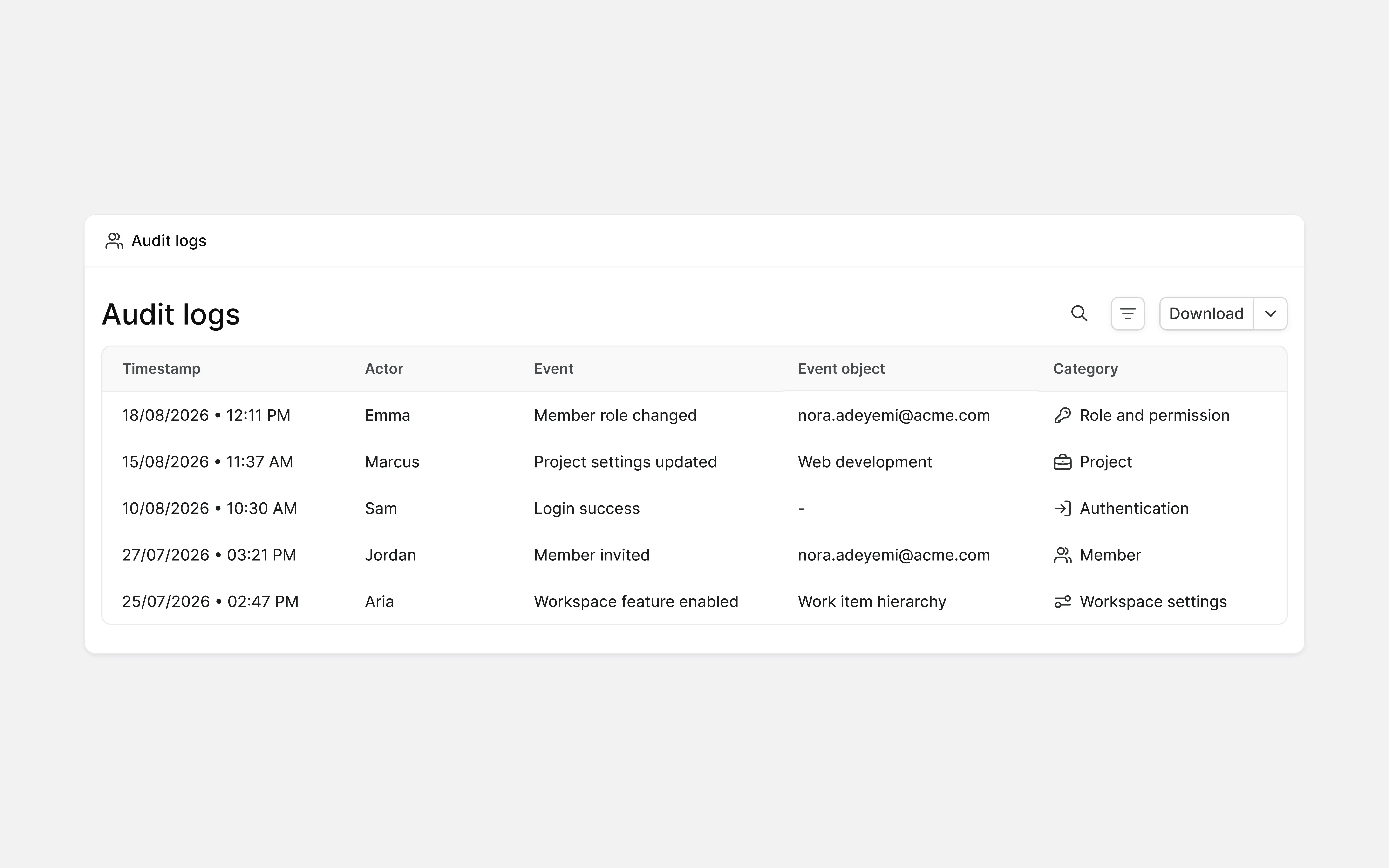
Tip: Include audit-log exports in the organization's existing security review or evidence-collection process. Do not leave them as a feature that is only checked after an incident.
2. Workspace structure
Workspace structure determines where governance boundaries sit and how easily teams can collaborate.
Create separate workspaces for meaningful boundaries such as business units, regions, legal entities, or confidentiality requirements.
Different team workflows do not always require different workspaces. Teamspaces, projects, roles, and project-level configuration can often provide the separation teams need within one workspace.
How work is organized in a Plane workspace
Workspace
├── Projects
│   ├── Work items
│   │   ├── Work item types (Epics)
│   │   ├── Custom properties
│   │   ├── Sub work items
│   │   ├── Relations
│   │   ├── Comments
│   │   ├── Links
│   │   ├── Attachments
│   │   ├── Activity history
│   │   ├── Work logs
│   │   └── Archives
│   ├── Cycles
│   │   ├── Work items
│   │   ├── Burndown and progress
│   │   └── Work item transfer
│   ├── Modules
│   │   ├── Work items
│   │   └── Progress
│   ├── Milestones
│   │   └── Work items
│   ├── Views
│   │   ├── Layouts
│   │   ├── Filters
│   │   ├── Display properties
│   │   └── Access control
│   ├── Pages
│   ├── Intake
│   │   ├── Intake work items
│   │   ├── Intake forms
│   │   ├── Email intake
│   │   └── Triage
│   ├── Project updates
│   ├── Workflows
│   │   ├── States
│   │   ├── Transition rules
│   │   └── Approvals
│   └── Project settings
│       ├── General
│       ├── Members and roles
│       ├── Project states
│       ├── Labels
│       ├── Estimates
│       └── Features
├── Teamspaces
│   ├── Projects
│   ├── Work items [rollup]
│   ├── Cycles [rollup]
│   ├── Views
│   ├── Pages
│   └── Members
├── Wiki [workspace knowledge]
│   ├── Collections
│   │   └── Pages
│   ├── Pages
│   │   ├── Sub-pages
│   │   ├── Private pages
│   │   ├── Public pages
│   │   ├── Sharing
│   │   ├── Comments
│   │   ├── Version history
│   │   ├── Page templates
│   │   ├── Locking
│   │   └── Archives
│   ├── Blocks
│   │   ├── Headings and text
│   │   ├── Lists and to-dos
│   │   ├── Quotes
│   │   ├── Callouts
│   │   ├── Toggles
│   │   ├── Tables
│   │   ├── Code blocks
│   │   ├── Images and media
│   │   ├── File attachments
│   │   ├── External embeds
│   │   ├── Work item embeds
│   │   ├── Mentions
│   │   ├── Dividers
│   │   └── Database blocks
│   └── Databases
│       ├── Properties
│       ├── Views
│       └── Records
├── Initiatives
│   ├── Projects
│   ├── Epics
│   └── Work items [rollup]
├── Releases
│   ├── Work items
│   ├── Release tags
│   ├── Release labels
│   └── Changelog
├── Customers
│   ├── Requests
│   ├── Custom properties
│   └── Linked work items
├── Dashboards
│   ├── Private dashboards
│   ├── Public dashboards
│   ├── Widgets
│   │   ├── Bar chart
│   │   ├── Line chart
│   │   ├── Area chart
│   │   ├── Donut chart
│   │   ├── Pie chart
│   │   └── Number
│   └── Layout
├── Analytics
│   ├── Overview
│   ├── Projects
│   ├── Users
│   ├── Work items
│   ├── Cycles
│   ├── Modules
│   └── Intake
├── Plane AI
│   ├── Modes
│   │   ├── Talk to build
│   │   ├── Ask to know
│   │   └── Assign to ship
│   ├── Agents
│   │   ├── Built-in agents
│   │   ├── Custom agents
│   │   └── Skills
│   ├── Models
│   │   ├── Model routing
│   │   └── Model cocktailing
│   └── Usage
│       ├── Consumption
│       ├── Limits
│       ├── Per-model breakdown
│       └── Per-agent breakdown
├── Integrations
│   ├── GitHub
│   ├── GitHub Enterprise Server
│   ├── GitLab
│   ├── GitLab Enterprise
│   ├── Slack
│   ├── Sentry
│   ├── Draw.io
│   ├── Agents (Claude, Cursor, VS Code MCP)
│   └── Importers (Jira, Jira Server, Linear, Asana, ClickUp, Confluence, Notion)
└── Workspace settings
    ├── General
    ├── Members
    ├── Roles and permission groups
    ├── Granular access control
    ├── Security and identity
    │   ├── SSO / SAML / OIDC
    │   └── LDAP (Enterprise Grid)
    ├── Work item types
    │   ├── Hierarchy levels
    │   └── Type properties
    ├── Automations
    │   ├── Global automations
    │   └── Project automations
    ├── Plane Runner (Enterprise Grid)
    │   ├── Transition scripts
    │   ├── Automation scripts
    │   └── Functions
    ├── Billing and plans
    ├── API tokens
    ├── Webhooks
    ├── Imports
    ├── Exports
    └── Audit logs
Structure workspaces around real boundaries
Enterprise Grid supports organizations that need to manage multiple workspaces under a shared enterprise arrangement.
An organization might have separate workspaces for Product and Engineering, Business Operations, and a regulated regional operation. Within each workspace, teamspaces can group related people and projects.
Ask these questions before creating another workspace:
- Does this group need a separate security boundary?
- Does it have different regulatory or data requirements?
- Should administrators govern it independently?
- Does its work need to be hidden from the rest of the organization?
- Would a teamspace or private project provide enough separation?
Tip: Fewer workspaces are easier to govern. Add a workspace when it represents a real organizational boundary, not simply because a team wants different labels or states.
Set predictable visibility defaults
Decide when projects should be public within the workspace and when they should be private.
Broad visibility works well where discoverability and cross-team collaboration matter. Private access is more appropriate for confidential, customer-sensitive, security, legal, or personnel-related work.
Document the default and its exceptions. Teams should not need to make a new policy decision every time they create a project.
3. Shared standards
Standardization should make work easier to understand across teams. It should not force every team into an identical operating model.
A practical split looks like this:
| Standardize across the organization | Leave to teams |
|---|---|
| Core work item types | Team-specific labels |
| Required project fields | Saved views |
| Shared workflow states | Board and list layouts |
| Project and work item templates | Cycle length |
| Approval requirements | Module structure |
| Update cadence | Local planning practices |
| Project naming rules | Optional custom properties |
The exact split will vary. The important question is who needs to understand the information.
If leadership compares something across teams, standardize it. If the information is only useful inside one team, let that team manage it.
Keep the work taxonomy small
Use a small, consistent set of conventions for how work is organized across teams. Keep names predictable, use each object for its intended purpose, and review the taxonomy regularly.
| Object | Suggested convention | Examples |
|---|---|---|
| Teamspaces | Team or function name | Design team, Backend team, Platform team |
| Projects | Product or workstream name | Mobile app, Product design |
| Work item types | Singular noun naming the nature of work | Epic, Bug, Task, Feature request |
| Modules | Focused area of work or specific goal | Mobile push notifications, Website redesign |
| Initiatives | Long-term, strategic objective | Q3-Q4 roadmap, FY27-28 GTM strategy |
| Labels | Classification or characteristic of the work | Enhancement, security, performance |
Avoid creating multiple names for the same concept. Synonyms such as bug, Bug, bugs, and defect make cross-project reporting harder to trust and understand.
Teams can add properties for their own context, but the common work item types should remain easy to recognize across the organization. Plane supports both workspace work item types and project work item types.
Tip: If a new employee needs a glossary to tell two work item types apart, the taxonomy is probably too detailed.
Create reusable project templates
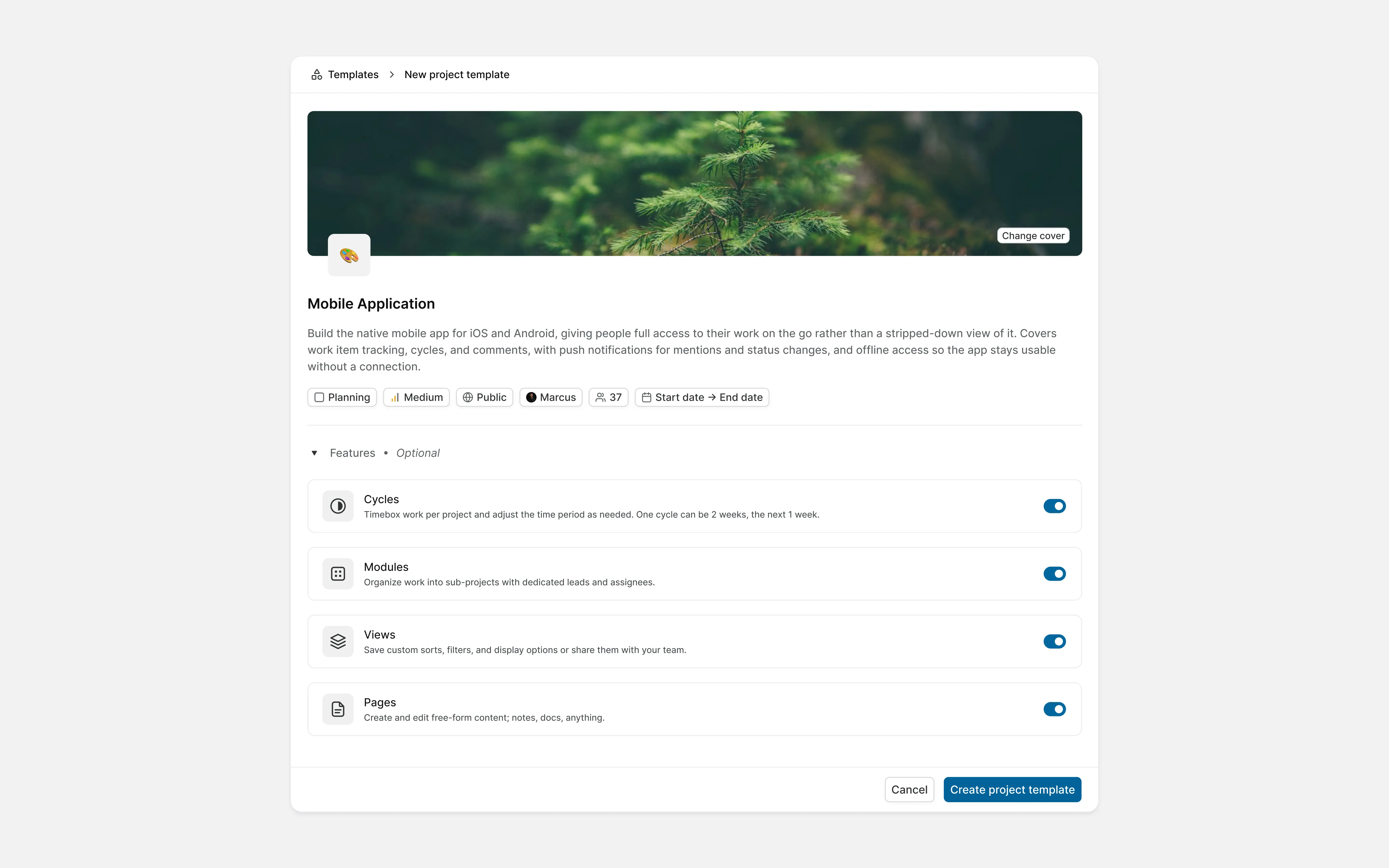
Project templates give teams a reliable starting point without requiring administrators to configure every project.
A template can include the project structure and configuration that a recurring type of work needs. Create templates for repeatable processes such as product development, incident response, customer implementation, or security review.
Do not create a separate template for every team. A smaller set of well-maintained templates is easier to understand and update.
Project template
4. Migration
Define the target workspace structure and shared standards before the first import.
Start with one representative team. Validate the structure, permissions, work item mapping, and reporting before moving additional teams.
Plane provides importers for Jira, Linear, Asana, ClickUp, Confluence, Notion, and CSV data.
During the pilot, check:
- User and assignee mapping
- Project and work item structure
- States and workflows
- Labels and custom fields
- Comments and attachments
- Links between related work
- Dates and historical information
- Permissions after import
- Reporting after import
Not every field from the old system needs to be preserved. Keep information that remains useful and archive what no longer has operational value.
Tip: Do not redesign every process during migration. Define the target structure, move representative work into it, and adjust based on what the pilot reveals.
Importer mapping
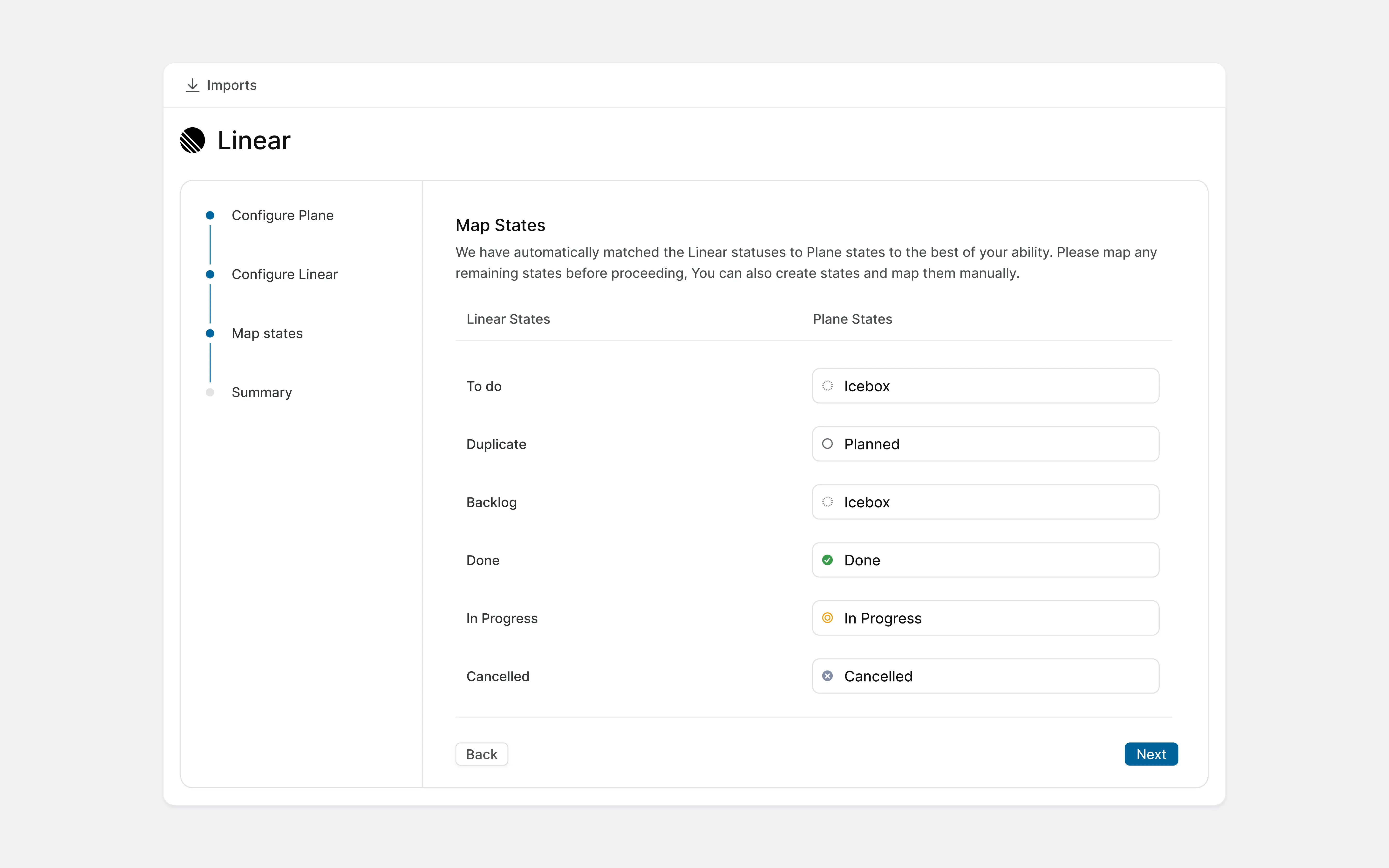
Migration guides: Import from Jira | Import from Linear | Import from CSV
Planning a large migration? Talk to the Plane team about migration planning and implementation support.
5. Strategy and planning
Leadership needs a view of strategic work without requiring teams to report every task upward.
Connect initiatives to projects
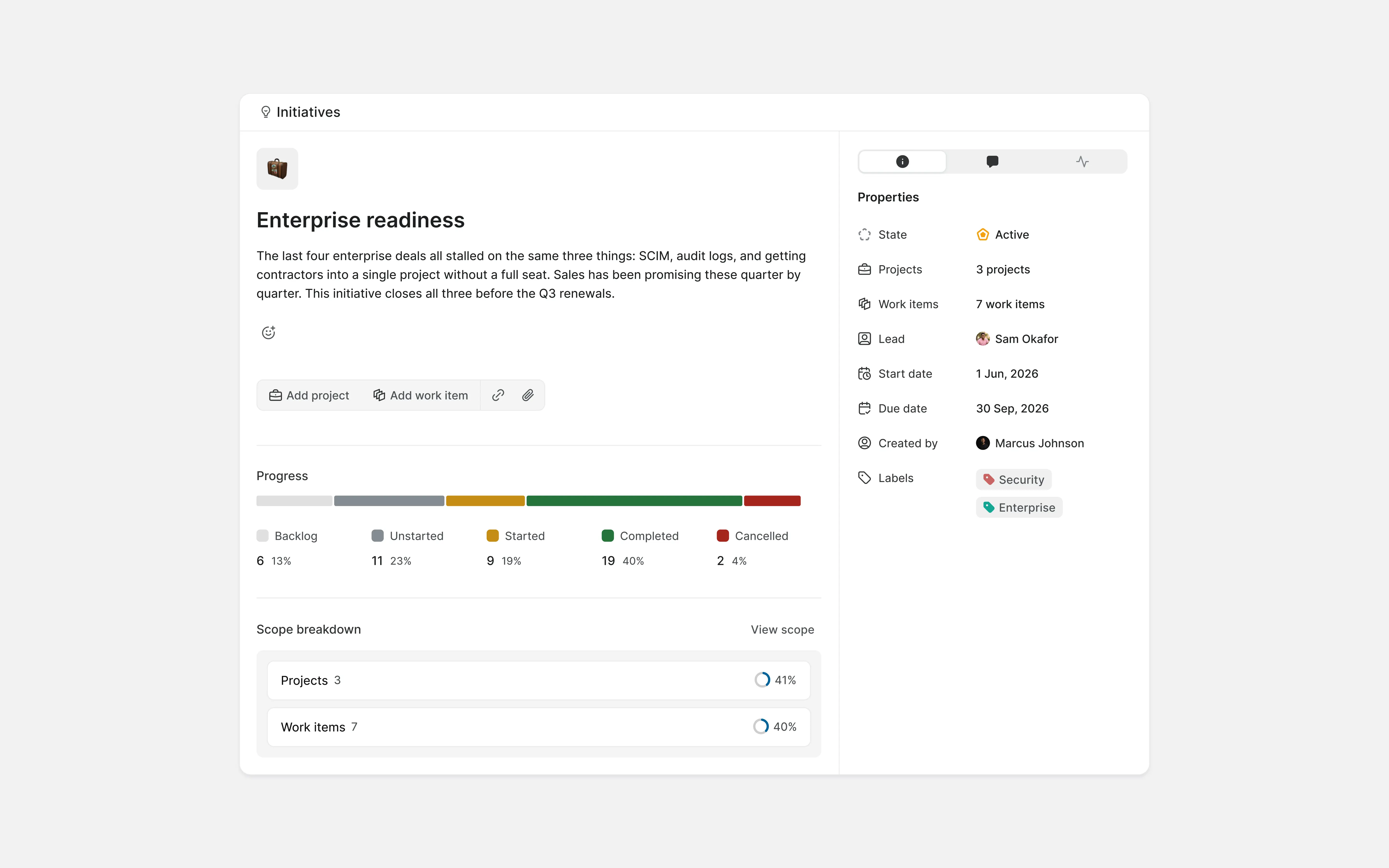
Initiatives bring related projects together around a larger objective.
Leadership can follow progress, dates, owners, and state at the initiative level. Teams can continue managing delivery through projects, cycles, modules, milestones, and work items.
Keep initiative names focused on the intended outcome. "Improve enterprise activation" communicates more than "Activation projects."
Initiative
Tip: An initiative should help leadership understand progress and make decisions. If it only groups unrelated projects, it will not provide a useful strategic view.
Give every project an owner and outcome
Every active project should have:
- A clear name
- One accountable owner
- A defined outcome
- A target date or planning horizon
- A current state
- A regular update
Choose a project naming convention while the number of projects is still manageable.
For example:
- ENG / Enterprise SSO
- ENG / Mobile App
- GTM / Customer Expansion
- OPS / Regional Rollout
The exact format matters less than consistent use.
Cycles, Modules, and Milestones
All three give teams different ways to organize and track project work.
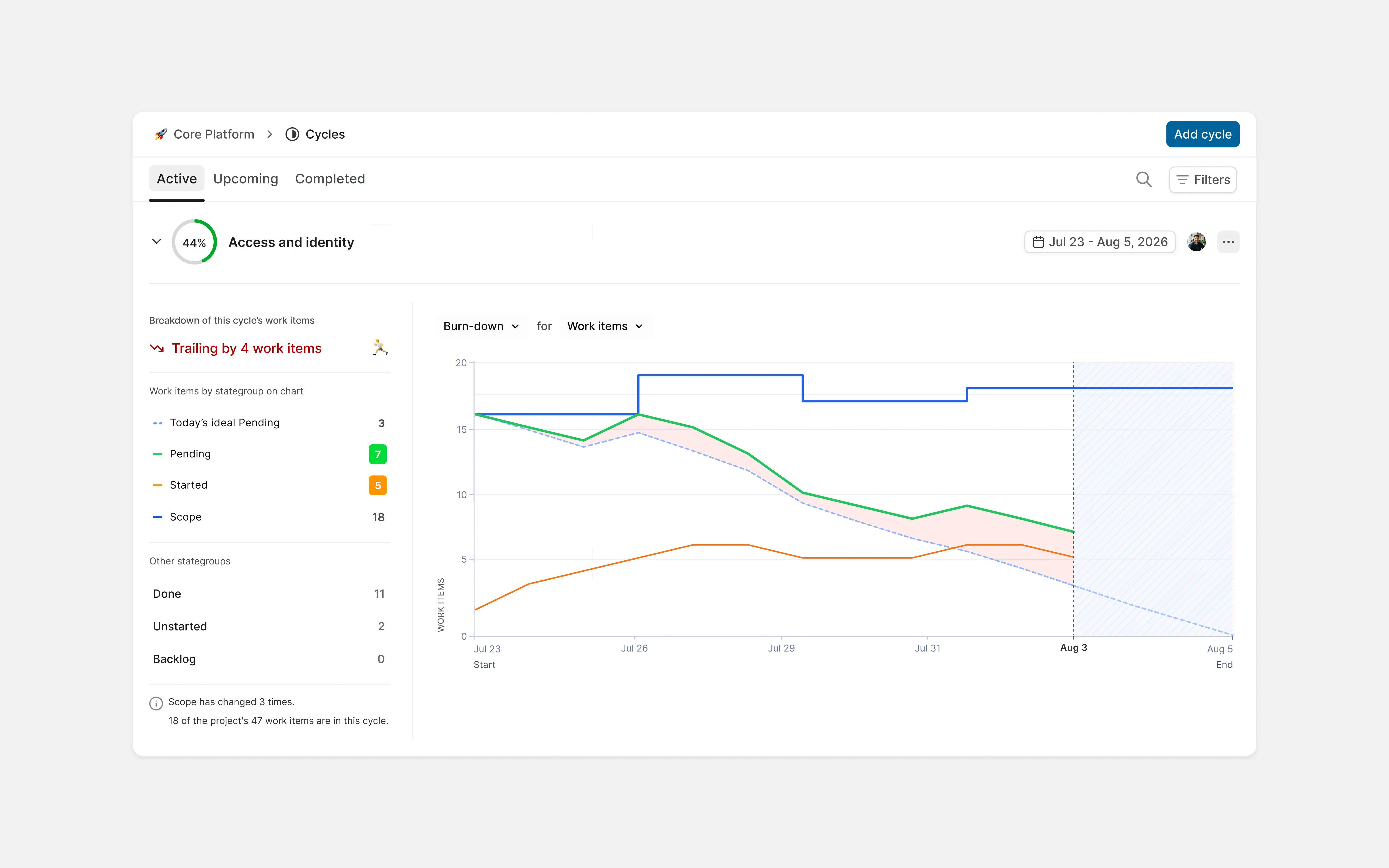
Cycles help teams plan work within a defined period, such as a week, two weeks, or a month. Teams can use them to decide what to focus on next, monitor progress during the cycle, and carry unfinished work forward when needed.
Modules group work connected to the same feature, component, or deliverable. A module can span multiple cycles, making it useful for tracking work that belongs together but will not be completed within a single planning period.
Milestones mark significant points in a project, such as a beta release, security review, product launch, or customer rollout. They give teams and stakeholders a clear view of the major outcomes and dates that matter.
For example, a mobile app launch may be tracked as a milestone. Authentication, onboarding, and notifications may be organized into separate modules, while the work required for each module is planned across several cycles.
Teams can use all three together or only the ones that fit their planning process.
Cycles
6. Integrations
Connect the systems that already create or update important work. For engineering organizations, this often starts with source control, error monitoring, and communication tools.
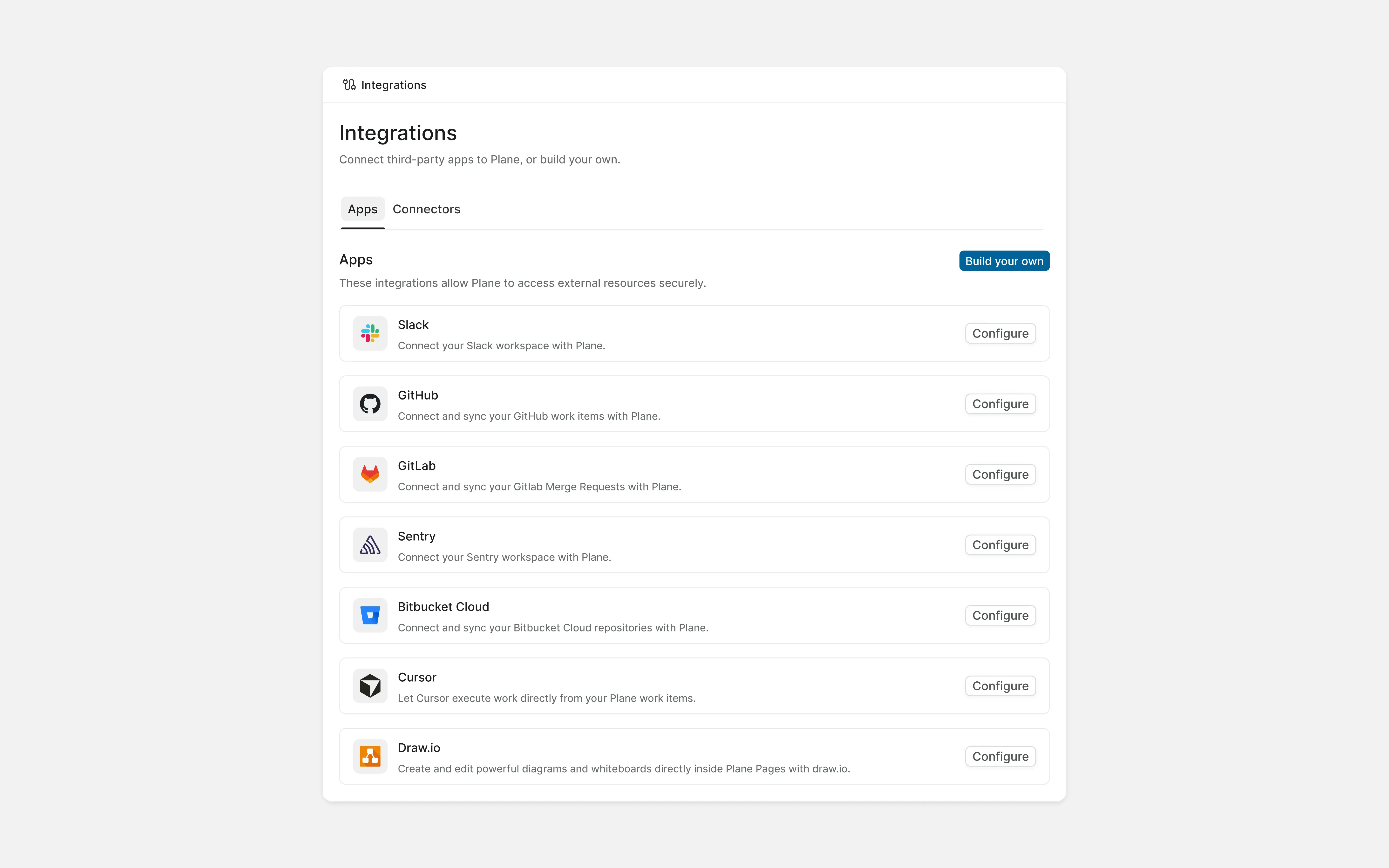
Plane provides native integrations for tools including GitHub, GitLab, Sentry, Slack, Bitbucket, and Cursor.
| Integration | Use case |
|---|---|
| GitHub / GitHub Enterprise | Two-way sync between work items and pull requests |
| GitLab | Automatic linking and tracking of merge requests against work items |
| BitBucket | A single Plane workspace, connected to many Bitbucket workspaces, kept in sync |
| Slack | Work item creation, actions, and discussion sync, without leaving Slack |
| Sentry | Sentry issues converted into work items, with state kept in sync |
| Draw.io | Diagrams embedded directly into pages |
Start with the integrations used by the pilot team. Confirm that work moves as expected before making them available organization wide.
Integrations
Define ownership before connecting tools
For each integration, record:
- The business purpose
- The system owner
- The Plane owner
- The permissions or scopes it receives
- Which workspaces or projects it can access
- Where credentials are stored
- How failures are monitored
- How access is reviewed
- What happens when the integration is removed
API keys, OAuth applications, and webhooks should have named owners. Avoid credentials tied to an individual employee where a service or organization-level identity is available.
Note: An integration can create or change work without someone opening Plane. Treat it as part of the organization's access model.
Extend Plane through approved paths
For organization-specific workflows, Plane provides a REST API, webhooks, and tools for building custom applications and integrations.
Keep custom extensions under shared ownership. Document what they do, which permissions they have, and how they are maintained.
7. Intake and customer requests
Incoming work needs one visible path and a clear owner.
Plane Intake can collect work through:
Submissions enter a triage state before they become planned project work. Teams can review, clarify, accept, decline, merge, or prioritize requests before adding them to the backlog.
Give every intake queue an owner
Decide:
- Who reviews new submissions
- How quickly submissions should be reviewed
- Which information submitters must provide
- How duplicates are handled
- What qualifies for planned work
- How requesters receive an update
- Who covers the queue when the main owner is unavailable
Tip: Keep forms short enough that people will complete them, but collect enough context for the team to make an initial decision.
Intake requests
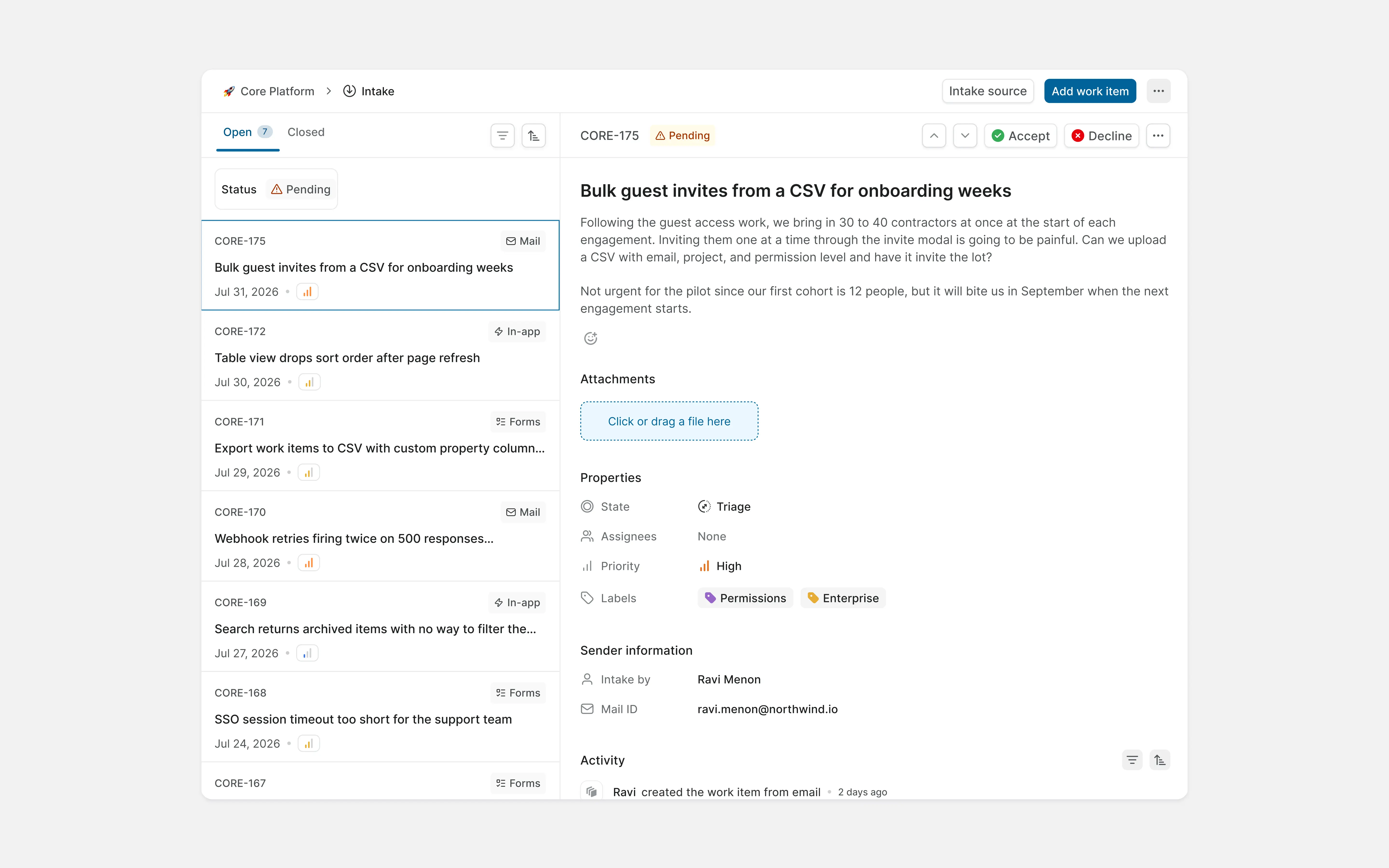
Teams can create intake forms for structured submissions or accept requests through intake email.
Connect requests to delivery
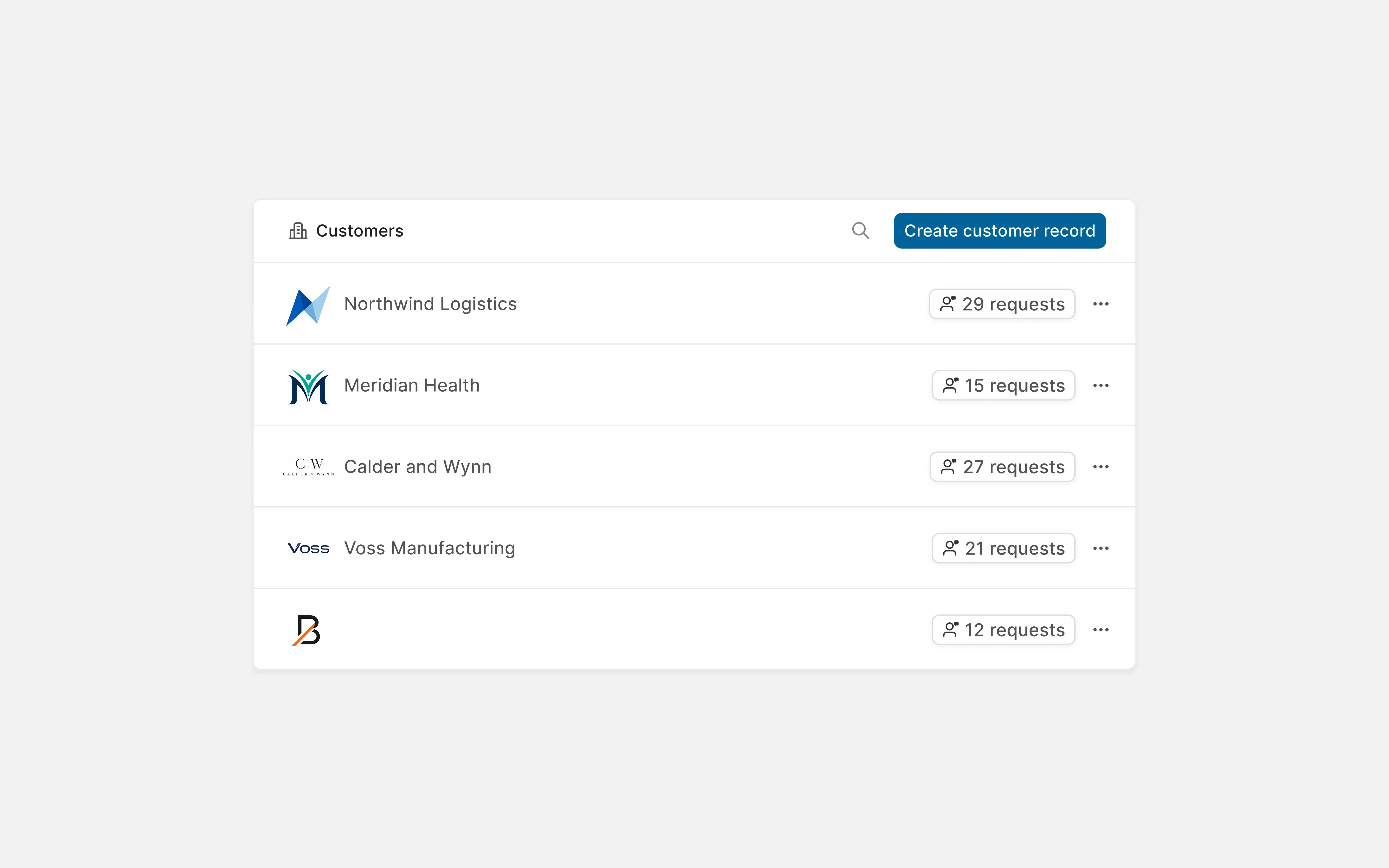
Customers and customer requests connect external demand to the work addressing it.
Support and Customer Success teams can follow whether a request has been accepted, linked to planned work, or completed without maintaining a separate delivery tracker.
Customer requests
8. Knowledge and documentation
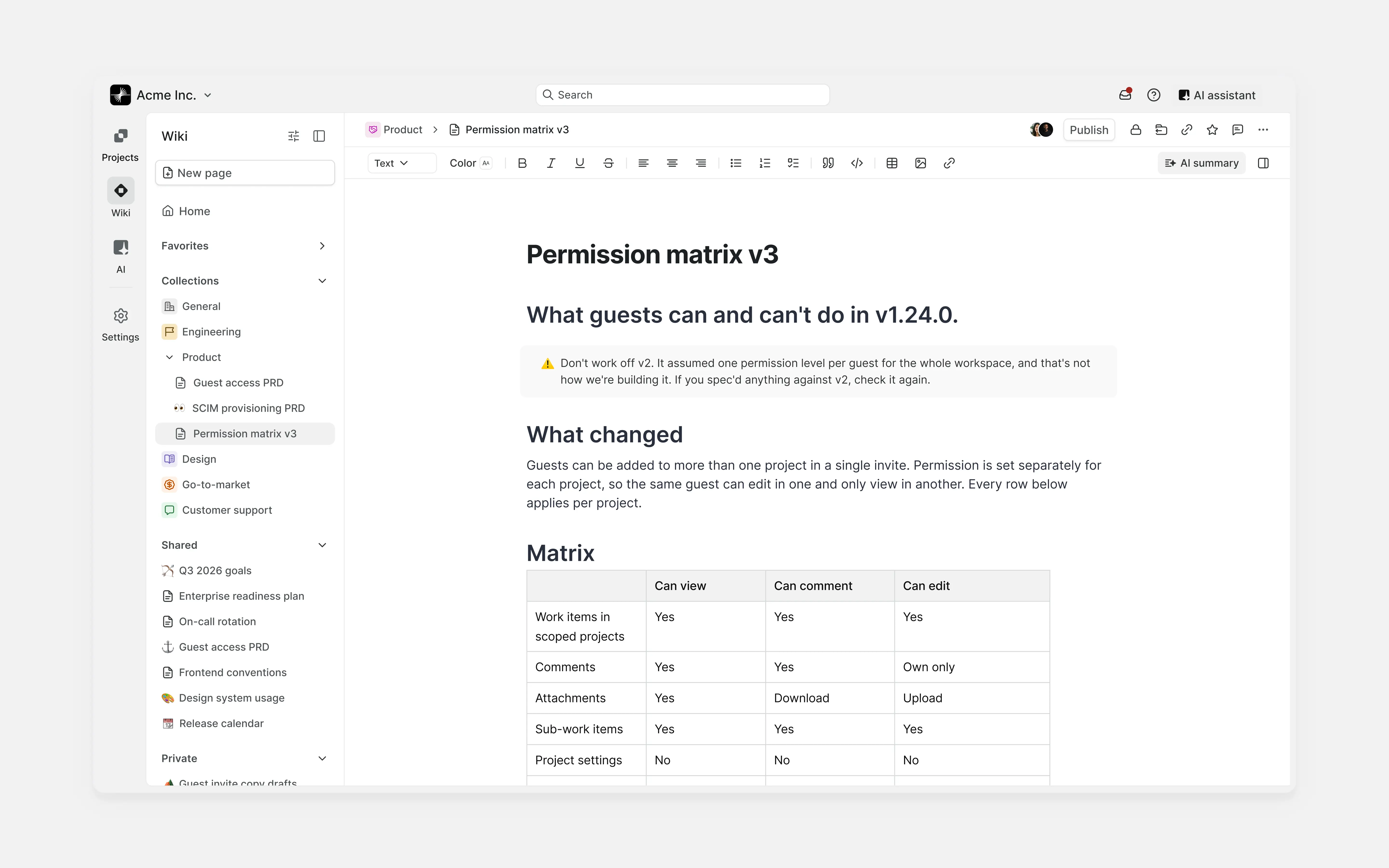
Shared knowledge should be easy to find outside individual projects.
Use the Wiki for durable organizational knowledge such as:
- Engineering standards
- Architecture
- Runbooks
- Product principles
- Planning processes
- Policies
- Decision records
- Onboarding material
Project Pages are better suited to knowledge connected to a specific project, such as briefs, meeting notes, specifications, and launch plans.
Organize the Wiki through collections and nested pages so people can browse it without already knowing the title of the page they need.
Organization Wiki
Keep decision records consistent
For significant decisions, record:
- What was decided
- Why it was decided
- Which alternatives were considered
- Who made the decision
- When it was made
- When it should be reviewed again
A short, consistent decision record is more useful than a detailed document nobody maintains.
Tip: Link decision records to the projects, initiatives, or work items they affect. People should be able to move from the decision to the work without searching for it.
9. Reporting and leadership visibility
Reporting should answer a known question for a known audience.
Teams need operational views. Functional leaders need progress, risk, and dependency information. Executives need a clear view of strategic commitments.
Start with saved views
Saved views are often enough for recurring operational questions such as:
- What is blocked?
- What is overdue?
- Which incidents remain open?
- What needs review?
- Which work has no owner?
Do not build a dashboard if a saved view answers the question clearly.
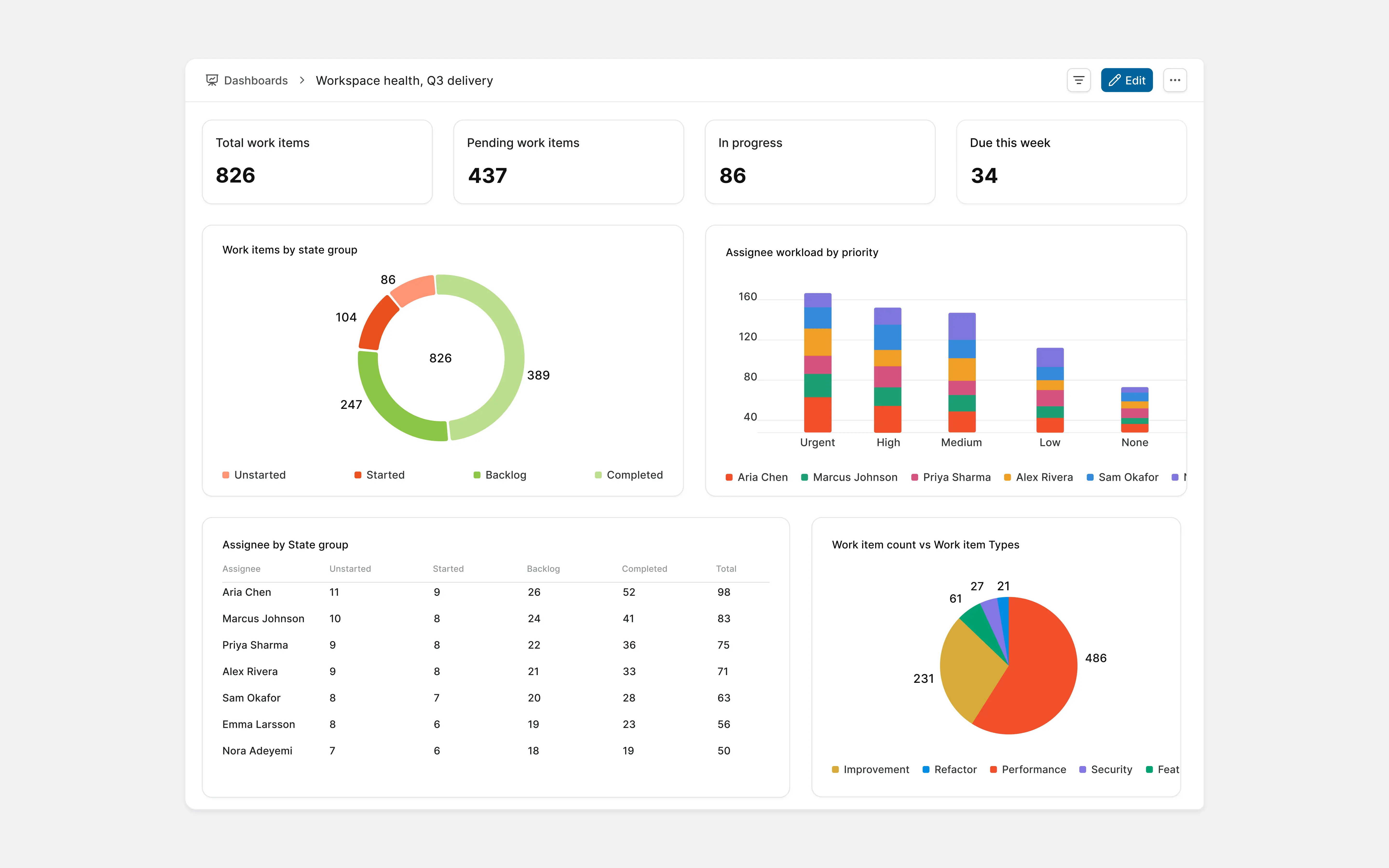
Build dashboards around decisions
Dashboards should help someone decide or act.
Useful leadership questions include:
- Which initiatives are at risk?
- Where are dependencies blocking delivery?
- Which projects have missed an update?
- What work is consuming capacity?
- What shipped during the current period?
Keep dashboards focused. A screen filled with widgets can provide less clarity than three well-chosen measures.
Leadership dashboard
Tip: Assign an owner to every dashboard. Review it periodically and remove anything that no longer informs a decision.
Set an update cadence
Numbers show what changed. Updates explain why.
A practical reporting rhythm might include:
Weekly functional updates
- Initiative progress
- Major blockers
- Material changes
- Decisions needed
Monthly executive updates
- Progress against commitments
- Major risks
- Capacity shifts
- Cross-team dependencies
- Changes since the previous update
The cadence should match how often the audience can act on the information. Project updates give teams a consistent place to record health, progress, blockers, and next steps.
10. Workflows and approvals
Create workflows and approvals around processes the organization genuinely needs to enforce.
Shared workflows are useful for:
- Production changes
- Security reviews
- Incident response
- Customer escalations
- Procurement
- Release readiness
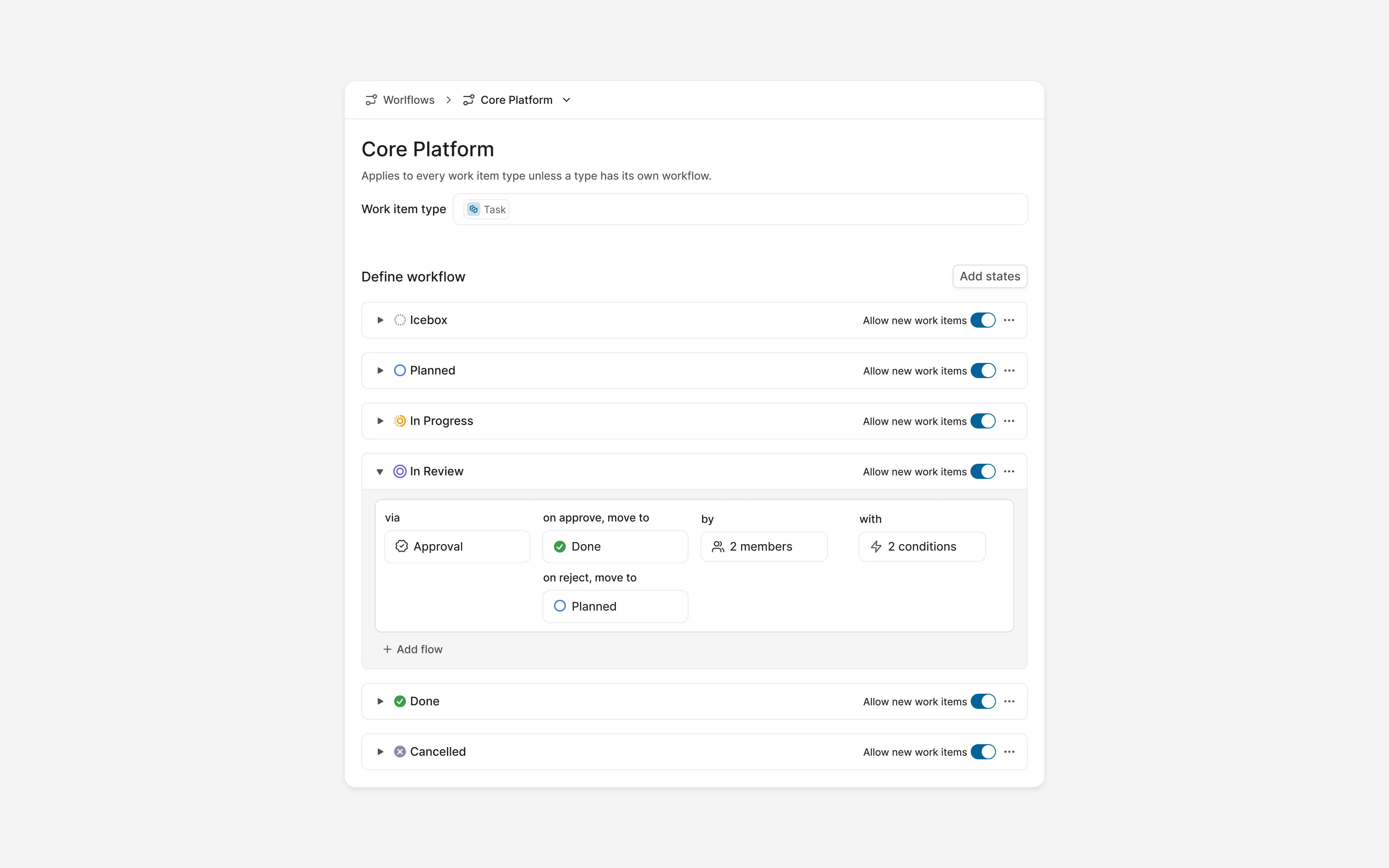
Approvals should represent real decision points. Adding approval steps to ordinary work slows teams down without improving control.
For every approval, define:
- What is being approved
- Who can approve it
- What information the approver needs
- What happens after approval
- What happens after rejection
- Who handles exceptions
Workflow with approval
Tip: If approvals regularly happen outside Plane, check whether the workflow includes enough context and the right approver.
11. Automation
Automate stable, repeatable processes like:
- Routing work based on type or property
- Updating a state after a defined event
- Adding standard comments
- Sending reminders
- Creating recurring work
- Calling an approved webhook
- Running scheduled maintenance
- Applying organization-specific business rules
Start with a small number of automations that solve visible problems. Monitor the results before expanding them across projects.
Plane supports project automations, while Enterprise Grid provides additional capabilities for organization-wide and more advanced automation requirements. Review the custom automation documentation and current plan comparison before deciding which automations belong in the rollout.
Automation builder
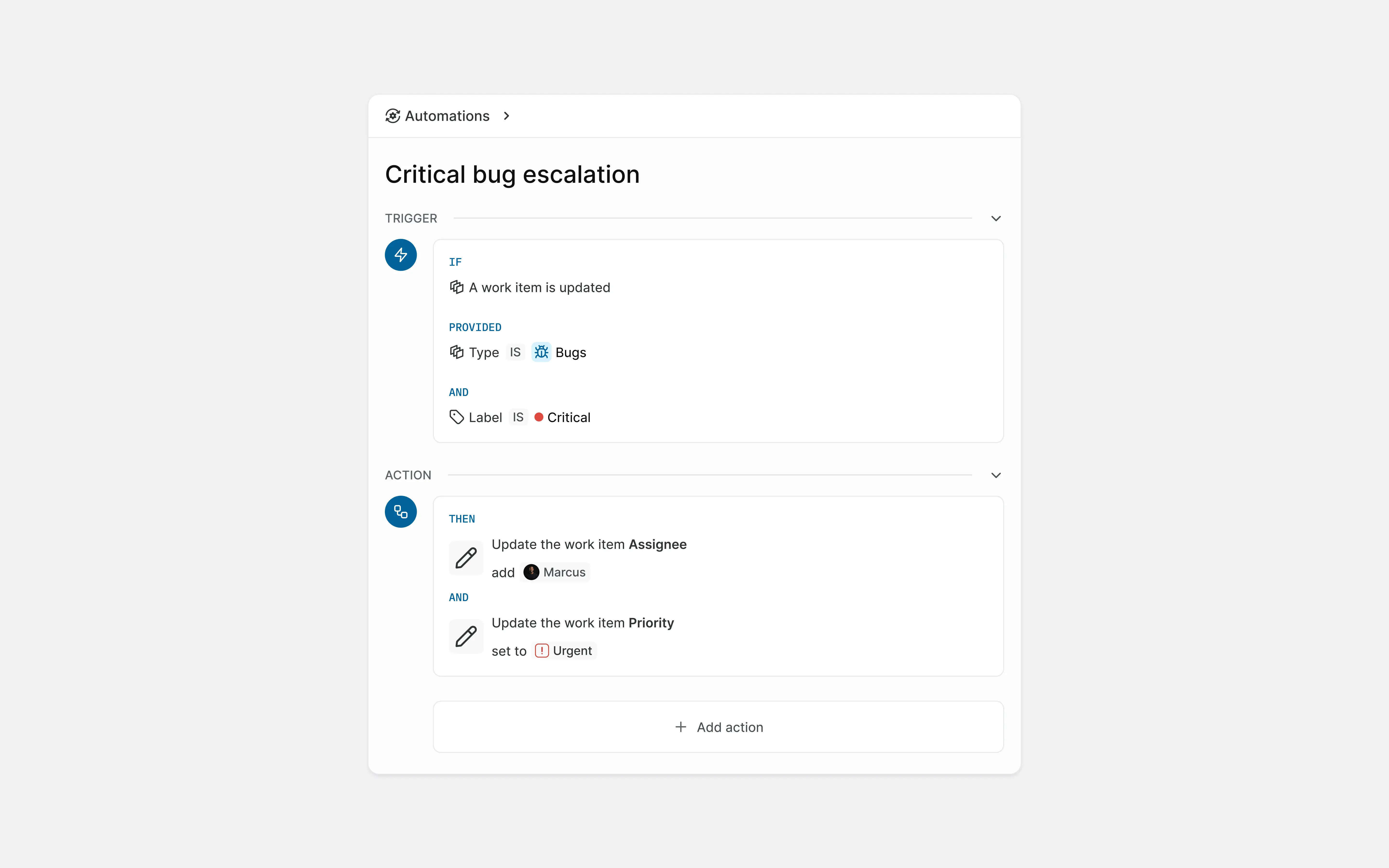
For every automation, record:
- What starts it
- Which conditions it checks
- Which actions it takes
- Which projects it affects
- Who owns it
- How failures are detected
- When it was last reviewed
Note: Someone should be able to explain why every organization-wide automation exists and what would happen if it stopped running.
12. Plane AI
Plane AI is built into the workspace you already use, not a separate chat window bolted onto the side. It reads and acts on the same projects, work items, and pages your team works in. What it's allowed to do without asking depends on the mode.
The three modes
| Mode | What it does |
|---|---|
| Ask | Read-only. Answers questions from your workspace, changes nothing. |
| Build | Plans a set of actions, shows them to you as cards, waits for your confirmation. |
| Autopilot | Same planning as Build, but executes immediately. No review step. |
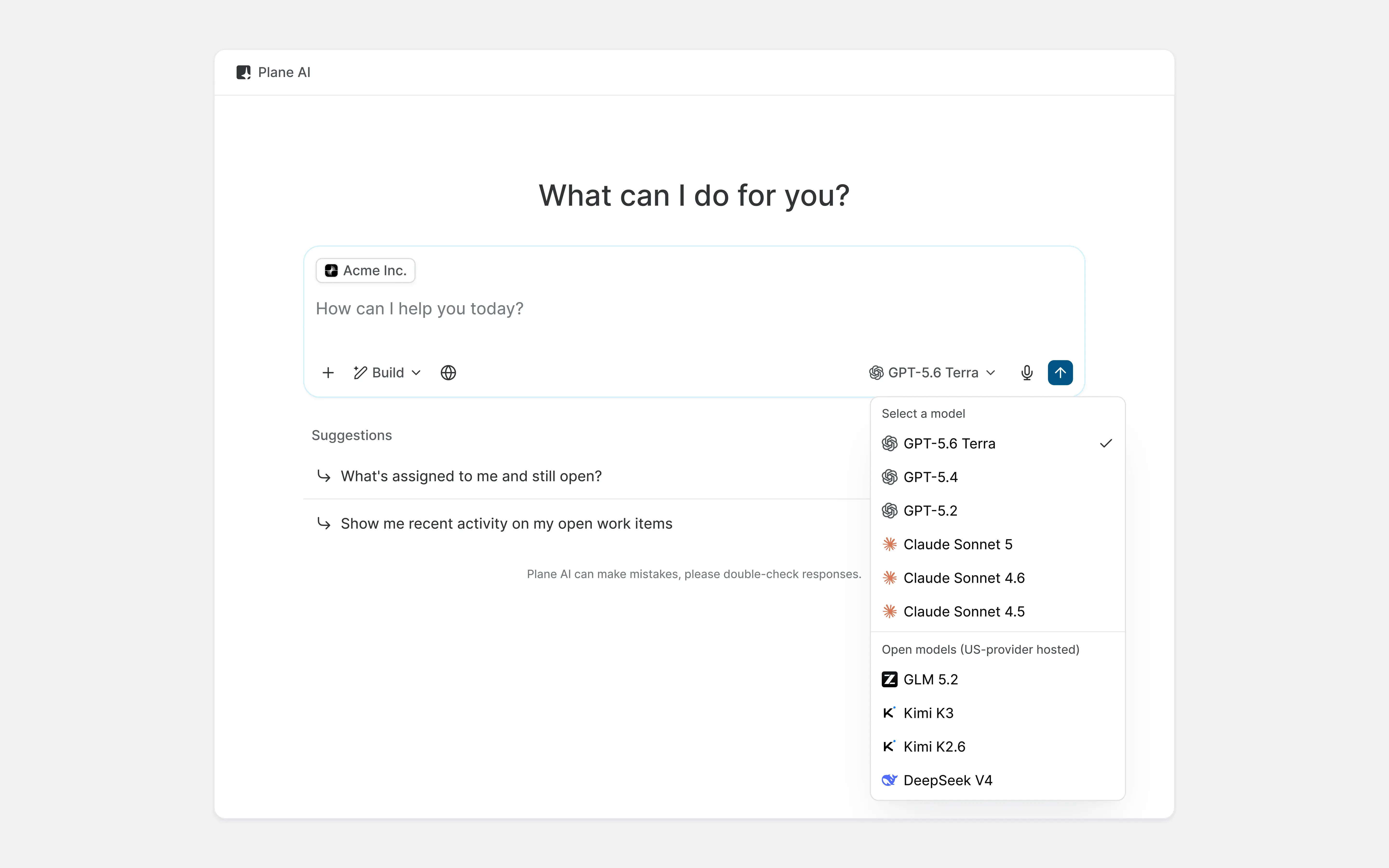
Introduce Plane AI after the organization has clear permissions, reliable workflows, and defined data boundaries.
Plane AI can help people search, summarize, draft, and work with project information. MCP connectors can extend that work to approved external tools and data sources.
These capabilities should follow the same governance model as employees and integrations.
Set an AI policy
Before broad access, decide:
- Which AI features are approved
- Which teams and workspaces can use them
- Which model providers are permitted
- What data can be shared with external providers
- Whether private or locally hosted models are required
- How usage and cost are monitored
- Who reviews generated output
- Which actions require human approval
The policy should distinguish between generating content and taking action. Summarizing a project update carries a different level of risk from changing work, calling an external system, or running a script.
Control access to MCP connectors
Review each connector before making it available.
Confirm:
- What data it can access
- What actions it can take
- Which credentials it uses
- Which users or teams can use it
- Who owns the connection
- How access will be reviewed and removed
Start with contained use cases and expand access only after the organization understands how the connector behaves. Teams building their own connections can use the Plane MCP server.
Tip: If an AI connection does not have a clear owner, it should not have access to organizational work or external systems.
13. Ongoing ownership
A successful rollout needs clear ownership after the initial implementation.
| Area | Typical owner |
|---|---|
| Identity and access | IT or Security |
| Workspace structure and governance | Platform, Operations, or workspace administration |
| Migration | Platform team and team champions |
| Shared standards | Workspace administration and functional leadership |
| Integrations and API access | Platform and Security |
| Intake | The team receiving the requests |
| Dashboards and reporting | Functional or operational leadership |
| Workflows and automation | Platform team or workflow owner |
| AI and MCP connectors | AI governance owner, Security, and platform team |
| Adoption and training | Department champions |
| Self-hosted operations | Infrastructure or SRE |
The exact owners will vary, but ownership should be explicit.
Create a regular review for:
- Administrators and privileged roles
- External users
- Inactive accounts
- Integrations and credentials
- Workspace and project visibility
- Organization-wide templates
- Workflows and automations
- Dashboards
- AI access and MCP connectors
- Self-hosted upgrades and backups
Tip: Keep the review lightweight and regular. A short quarterly review is easier to run than a large cleanup after access and configuration have accumulated for a year.
Roll out Plane with a clear operating model
Plane gives large organizations a common operating system without requiring every team to work in exactly the same way. Establish governance centrally, roll Plane out team by team, and assign clear ownership as the system grows.
Where to go from here
- Live reference: Plane's docs site. This guide is a snapshot. That page has the current pricing, seat limits, and feature availability by plan.
- Build on Plane: the developer docs, for the API, webhooks, the MCP server, and self-hosting guides.
- Talk to sales: reach out here, for Enterprise Grid scoping, migration services, or anything else this guide didn't answer.