

How to Plane: For growing teams
Once several teams share products, dependencies, and company goals, informal coordination stops being enough. Requests get lost, ownership becomes unclear, and leaders need answers that span more than one project.
Plane gives each team a focused place to manage its work while creating enough shared structure for the company to plan and report across teams.
This guide is for:
- Operations leads
- Engineering and product managers
- Workspace Owners and Admins
- Anyone responsible for maintaining Plane alongside another role
By the end of this guide, you will know how to structure Plane for multiple teams, introduce the right capabilities at the right time, and create reliable cross-team visibility without adding unnecessary administration.
Choose the right Plane plan
Plane Pro is a practical starting point for many growing companies. It provides the structure needed to manage multiple teams, including Work Item Types, Teamspaces, Milestones, Initiatives, Dashboards, Wiki, time tracking, and advanced estimates.
Move to Business, when the company needs capabilities such as:
- Intake Forms and Intake Email
- Customer request tracking
- Reusable project and work item templates
- Recurring work
- Configurable workflows
- Custom automations
- Nested Pages and embeds
- Advanced reporting controls
Review the current capabilities on the Plane pricing page before choosing a plan.
Most growing companies can begin with Plane Cloud. Consider self-hosting when infrastructure control, data residency, security policies, or customer requirements make it necessary. See the Plane self-hosting documentation for deployment options.
Import active work
Plane provides importers for tools including Jira, Linear, and ClickUp. You can also use the CSV importer. Review the importers overview for all available migration paths.
Move active work, recent context, and records the team still needs. Historical data that has no role in current planning or reporting can remain in a read-only archive.
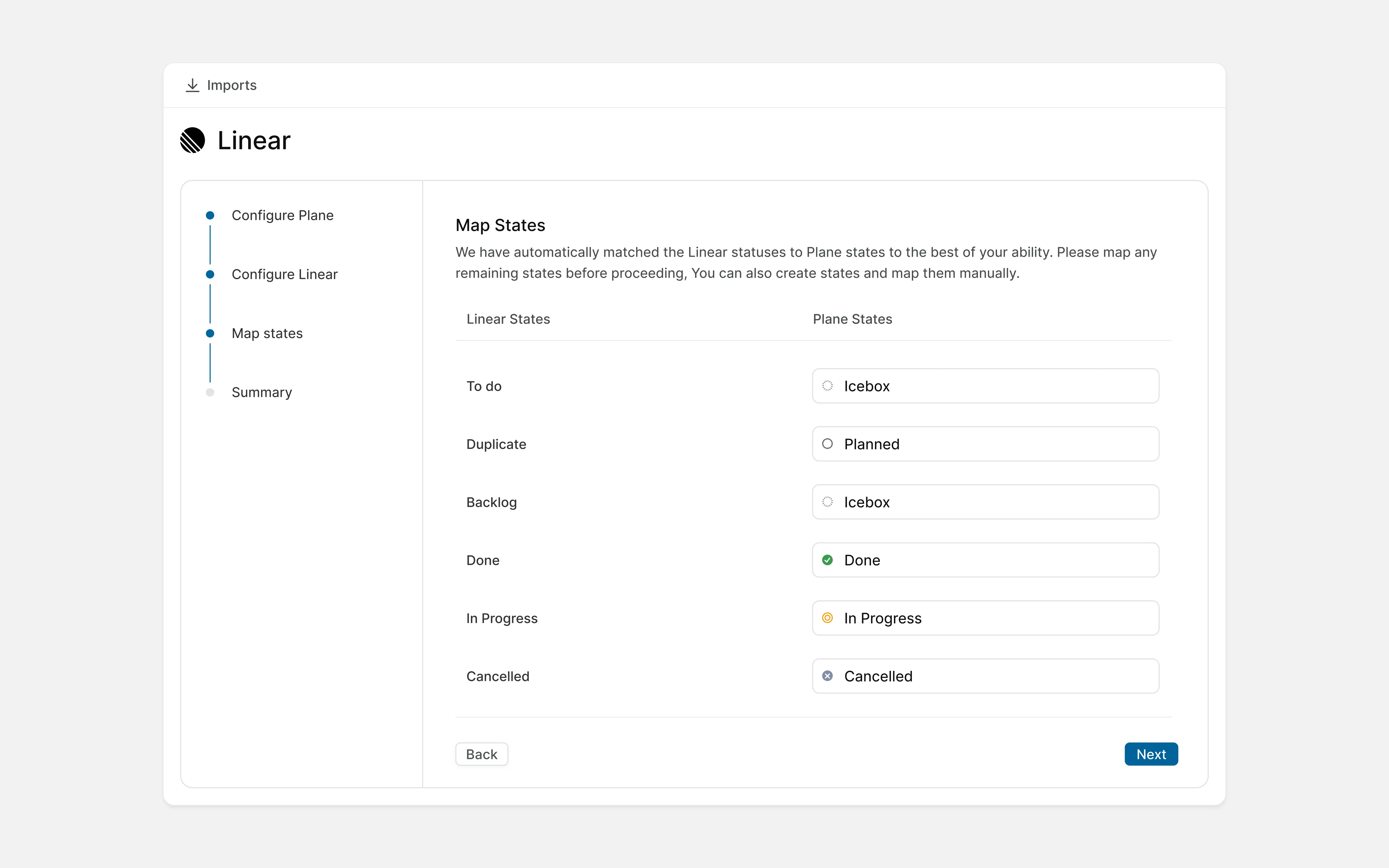
Tip: Clean up states and labels before importing. Mapping several variations of "in progress" into Plane only carries the existing inconsistency into the new Workspace.
Set roles and ownership
Start by deciding who will manage Plane at the Workspace level and who will manage each Project.
Assign Workspace Admins
Keep the group of Workspace Admins small. They can change settings that affect every team, so assign this role only to people responsible for the overall Plane setup.
Assign a Project Admin to every Project
Give each active Project at least one Admin who understands the team's workflow. Project Admins can manage members, states, features, and project-level settings without requiring Workspace Admin access.
Plane separates Workspace roles from Project roles. Someone can remain a Workspace Member while serving as a Project Admin for the Projects they own.
Use this access model as a starting point:
| Responsibility | Recommended access |
|---|---|
| Manage company-wide Plane settings | Workspace Admin |
| Manage a team's Project and workflow | Project Admin |
| Create and update the team's work | Member or Contributor |
| Review work without changing it | Commenter |
| Submit requests or access limited work | Guest |
Review the roles and permissions overview and permissions matrix before assigning access.
Limit access for external collaborators
Give contractors, agencies, customers, and other external collaborators access only to the Projects they need. Use the Guest role when someone needs limited access without becoming a full Workspace Member.
Note: Team leads and managers do not automatically require Workspace Admin access. Project-level administration is usually enough.
Create consistency across Projects
Teams do not need identical workflows. They need enough shared meaning for people to understand work across projects.
Standardize the information that supports company-wide planning and reporting:
- Priority definitions
- Broad state groups
- Ownership
- Target or due dates
- Work item relationships
- A small set of cross-project labels
- Project health and update language
Teams can add local states, labels, properties, and views around this shared minimum.
For example, one team may use states like "Development" and "Code Review" while another uses "In Progress" and "Verification". Both can still map active work to the same broad state group for cross-team reporting.
Organize teams and projects
How work is organized in a Plane Workspace
Workspace
├── Projects
│   ├── Work items
│   │   ├── Work item types (Epics)
│   │   ├── Custom properties
│   │   ├── Sub work items
│   │   ├── Relations
│   │   ├── Comments
│   │   ├── Links
│   │   ├── Attachments
│   │   ├── Activity history
│   │   ├── Work logs
│   │   └── Archives
│   ├── Cycles
│   │   ├── Work items
│   │   ├── Burndown and progress
│   │   └── Work item transfer
│   ├── Modules
│   │   ├── Work items
│   │   └── Progress
│   ├── Milestones
│   │   └── Work items
│   ├── Views
│   │   ├── Layouts
│   │   ├── Filters
│   │   ├── Display properties
│   │   └── Access control
│   ├── Pages
│   ├── Intake
│   │   ├── Intake work items
│   │   ├── Intake forms
│   │   ├── Email intake
│   │   └── Triage
│   ├── Project updates
│   ├── Workflows
│   │   ├── States
│   │   ├── Transition rules
│   │   └── Approvals
│   └── Project settings
│       ├── General
│       ├── Members and roles
│       ├── Project states
│       ├── Labels
│       ├── Estimates
│       └── Features
├── Teamspaces
│   ├── Projects
│   ├── Work items [rollup]
│   ├── Cycles [rollup]
│   ├── Views
│   ├── Pages
│   └── Members
├── Wiki [workspace knowledge]
│   ├── Collections
│   │   └── Pages
│   ├── Pages
│   │   ├── Sub-pages
│   │   ├── Private pages
│   │   ├── Public pages
│   │   ├── Sharing
│   │   ├── Comments
│   │   ├── Version history
│   │   ├── Page templates
│   │   ├── Locking
│   │   └── Archives
│   ├── Blocks
│   │   ├── Headings and text
│   │   ├── Lists and to-dos
│   │   ├── Quotes
│   │   ├── Callouts
│   │   ├── Toggles
│   │   ├── Tables
│   │   ├── Code blocks
│   │   ├── Images and media
│   │   ├── File attachments
│   │   ├── External embeds
│   │   ├── Work item embeds
│   │   ├── Mentions
│   │   ├── Dividers
│   │   └── Database blocks
│   └── Databases
│       ├── Properties
│       ├── Views
│       └── Records
├── Initiatives
│   ├── Projects
│   ├── Work items (epics) [rollup]
│   └── Work items [rollup]
├── Releases
│   ├── Work items
│   ├── Release tags
│   ├── Release labels
│   └── Changelog
├── Customers
│   ├── Requests
│   ├── Custom properties
│   └── Linked work items
├── Dashboards
│   ├── Private dashboards
│   ├── Public dashboards
│   ├── Widgets
│   │   ├── Bar chart
│   │   ├── Line chart
│   │   ├── Area chart
│   │   ├── Donut chart
│   │   ├── Pie chart
│   │   └── Number
│   └── Layout
├── Analytics
│   ├── Overview
│   ├── Projects
│   ├── Users
│   ├── Work items
│   ├── Cycles
│   ├── Modules
│   └── Intake
├── Plane AI
│   ├── Modes
│   │   ├── Talk to build
│   │   ├── Ask to know
│   │   └── Assign to ship
│   ├── Agents
│   │   ├── Built-in agents
│   │   ├── Custom agents
│   │   └── Skills
│   ├── Models
│   │   ├── Model routing
│   │   └── Model cocktailing
│   └── Usage
│       ├── Consumption
│       ├── Limits
│       ├── Per-model breakdown
│       └── Per-agent breakdown
├── Integrations
│   ├── GitHub
│   ├── GitLab
│   ├── Slack
│   ├── Sentry
│   ├── Draw.io
│   ├── Agents (Claude, Cursor, VS Code MCP)
│   └── Importers (Jira, Linear, Asana, ClickUp, Confluence, Notion)
└── Workspace settings
    ├── General
    ├── Members
    ├── Roles and permission groups
    ├── Security and identity
    │   └── SSO / SAML / OIDC
    ├── Work item types
    │   ├── Hierarchy levels
    │   └── Type properties
    ├── Automations
    │   ├── Global automations
    │   └── Project automations
    ├── Billing and plans
    ├── API tokens
    ├── Webhooks
    ├── Imports
    ├── Exports
    └── Audit logs
The Workspace is the shared company environment. Projects contain the work owned by a specific team, product, or area of responsibility.
A project should have a clear group responsible for its backlog, workflow, and updates.
Projects might represent:
- Frontend
- Backend
- Mobile Applications
- Platform
- Infrastructure
- Security
- Product Design
- Growth
- Customer Experience
Not every temporary initiative needs a new project. If several teams contribute to the same launch or company objective, keep their work in their existing projects and connect it through an Initiative or Milestone.
See how projects work in Plane.
Keep project names clear
Choose names that remain understandable as the company grows.
| Project | Identifier | Description |
|---|---|---|
| Web Application | WEB | Customer-facing web application |
| Backend | API | APIs, services, and core business logic |
| Mobile Applications | MOB | iOS and Android product development |
| Platform | PLAT | Shared developer infrastructure and internal tooling |
| Security | SEC | Product security, reviews, and remediation |
Avoid names based on temporary managers, quarters, or internal abbreviations that new employees will not understand.
Keep project features focused
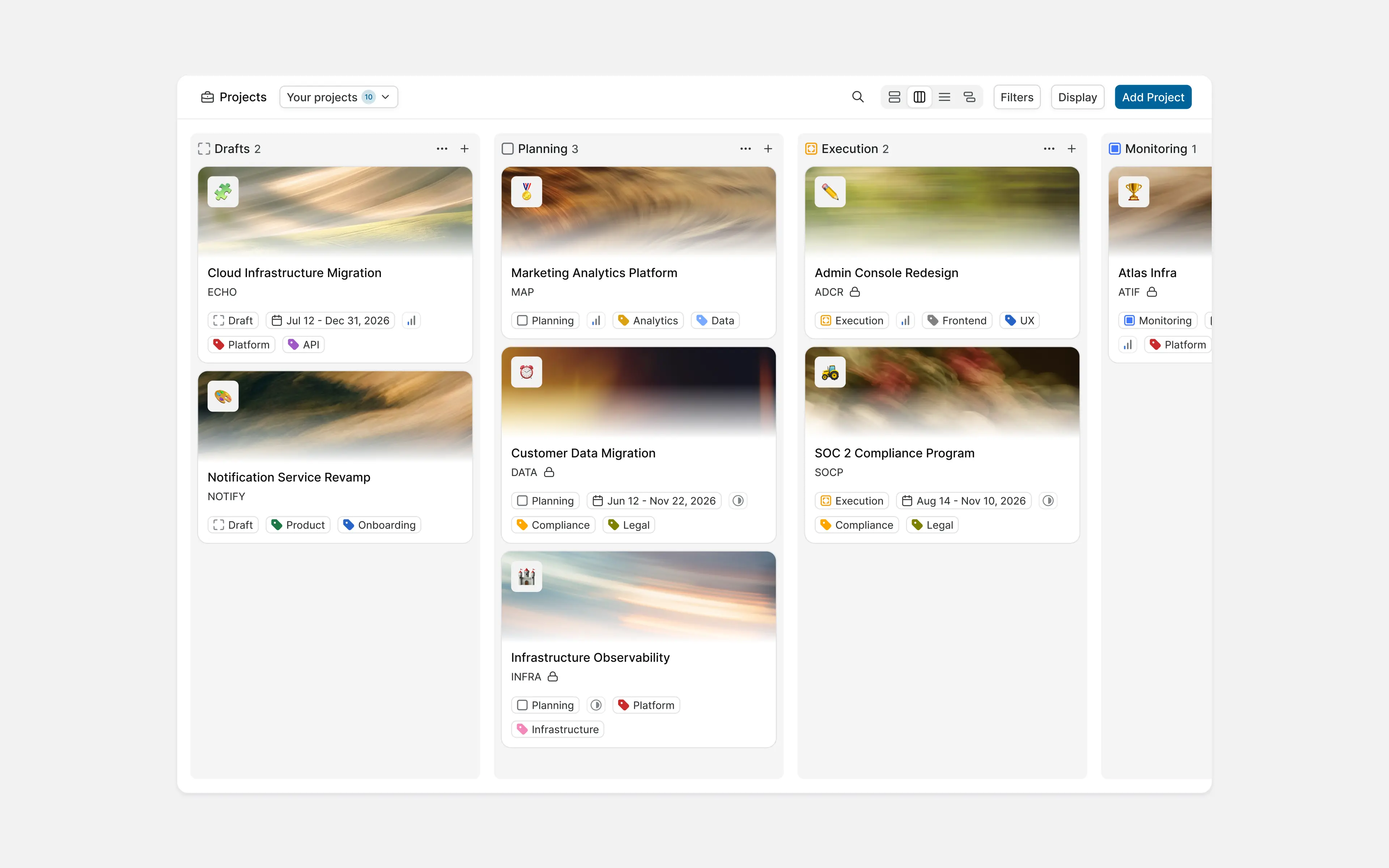
Projects can have their own set of enabled features and workflows. This allows each team to work within the same Workspace without using an identical setup.
Start with how the team plans and manages its work, then enable the features that support it. For example:
- Engineering teams may use Cycles for planning, Modules for grouping related work, and Pages for project context.
- Support teams may rely on Intake and Views to review and organize incoming requests.
- Security teams may use Work Item Types and custom properties to capture risk, severity, and review details.
Projects organized by team
Create Teamspaces for shared team context
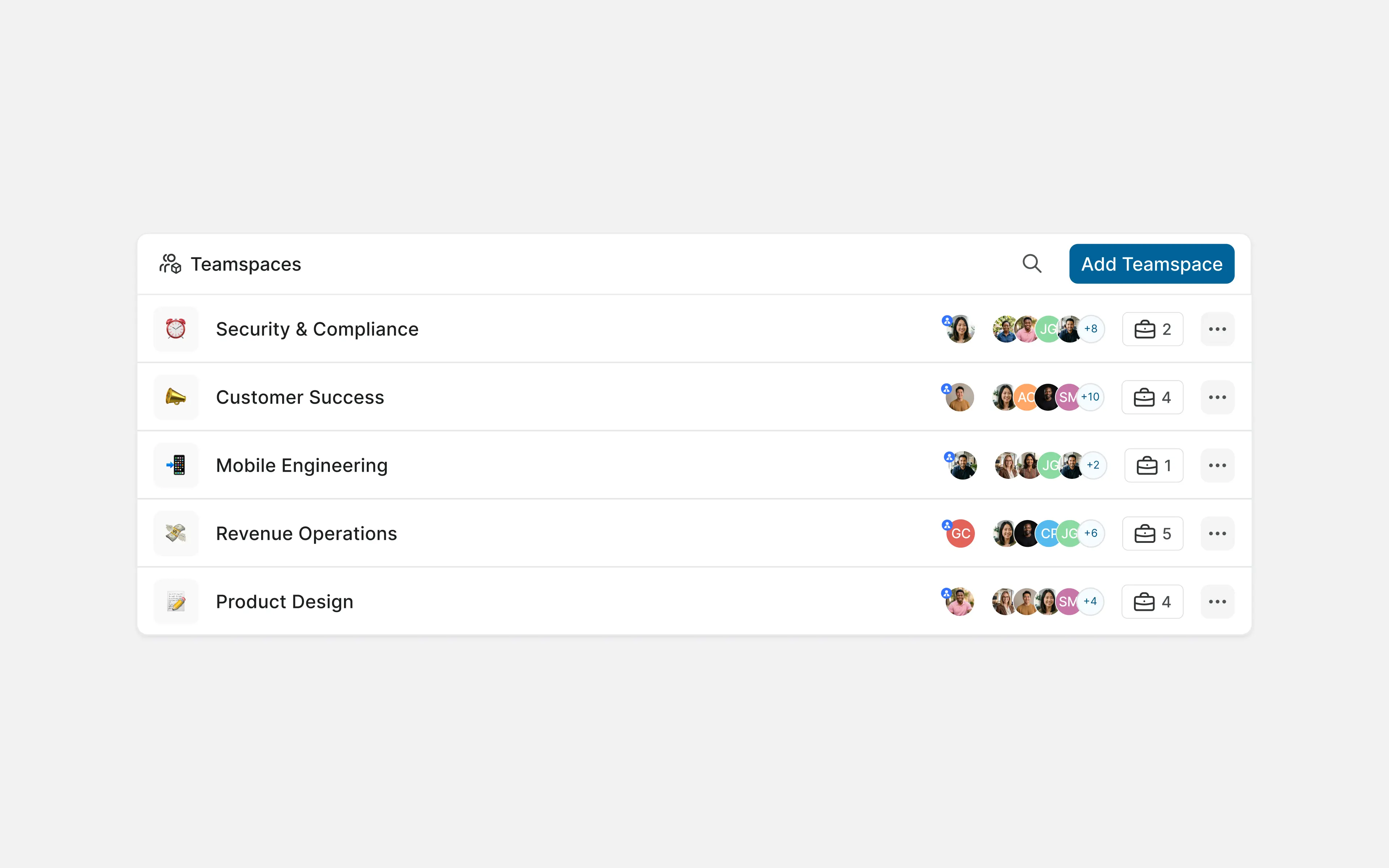
A Teamspace brings together the people, projects, Pages, Views, dependencies, and activity associated with a durable team.
Create a Teamspace when a team works across more than one project or needs a shared place for its knowledge and reporting.
For example, a Product Engineering Teamspace might include the Frontend, Backend, and Mobile Applications projects. A Platform Teamspace might include Infrastructure, Developer Experience, and Security.
Teamspaces should follow real organizational ownership. Do not create a Teamspace for every temporary initiative, launch, or reporting category.
A useful Teamspace description states:
- What the team owns
- Which products or systems it supports
- Who depends on it
- Where requests should be submitted
Teamspace
Organize work by type
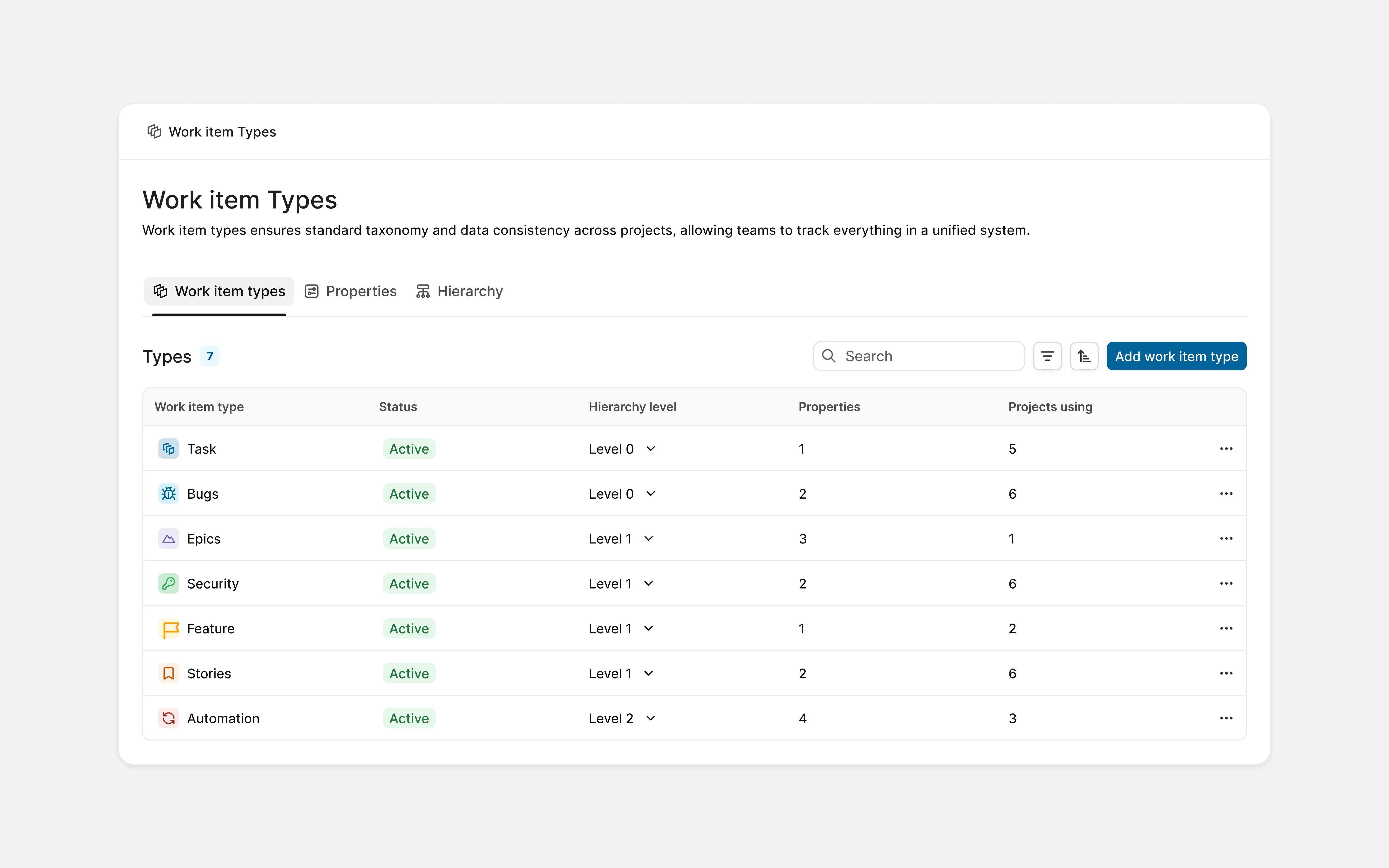
Every work item has a type, and the type decides which properties that item carries. A Bug carries severity and environment. An Epic carries an owner and a target date. Projects start with one default type for general work. Use Work Item Types to create the rest.
Teams can create types such as Bug, Feature Request, Security Review, Incident Follow-up, or Content Request. Each type can have properties suited to the work.
| Work Item Type | Useful properties |
|---|---|
| Epic | Owner (member), Target date (date), Health (dropdown: on track, at risk, off track), Success metric (text) |
| Bug | Severity (dropdown: S1 to S4), Environment (dropdown: production, staging, local), Affected version (text), Steps to reproduce (text), Regression (boolean) |
| Security Review | System (dropdown), Risk level (dropdown: critical, high, medium, low), Reviewer (member), Remediation due (date) |
| Content Request | Channel (dropdown: blog, docs, email, social), Audience (dropdown), Reviewer (member), Publish date (date), Brief (URL) |
Keep the number of types manageable. If two types require the same information and follow the same workflow, they may not need to be separate.
Work Item Types cannot be turned off after they are enabled for a project, although individual types can be disabled. Agree on the initial structure before enabling them broadly.
Keep labels useful
Labels work best for information that people regularly filter, group, or report on.
Useful shared labels might include:
- Customer reported
- Technical debt
- Compliance
- Reliability
- Accessibility
Do not create a label when the information already belongs in a state, priority, assignee, project, Work Item Type, or custom property.
Give shared labels a clear owner. Merge duplicates and archive labels that no longer support a decision.
Create the Views teams need
Views save filters, layouts, grouping, and sorting without duplicating work items.
Useful project Views include:
- Unassigned high-priority work
- Work blocked by another team
- Customer-reported bugs
- Work due this month
- Items waiting for review
- Work without an estimate or target date
Workspace Views bring together work from several projects. They can show all blocked work across Product Engineering, every security-related item due this quarter, or unassigned high-priority work across the company.
Create Views around recurring planning, review, and delivery conversations. If no one uses a View to answer a question or make a decision, it does not need to be maintained.
Connect the tools teams already use
Connect Plane to the tools your teams already use:
- GitHub and GitHub Enterprise for syncing issues and pull requests
- GitLab for linking issues and tracking merge requests
- Bitbucket for connecting repositories and development activity
- Slack for creating work items and managing updates from Slack
- Sentry for turning application errors into trackable work
- Cursor for working with Plane issues from Cursor
- Draw.io for embedding diagrams in Plane Pages
For custom connections, read the Plane API, and webhooks.
Review the integrations overview for the complete list and setup instructions.
Integrations exist so context lands next to the work. Commits, pull requests, and deploys show up on the work item they belong to. Errors arrive with the trace attached. A Slack thread becomes a work item without anyone leaving the channel. The repository still holds the code and the CRM still holds the account record, but the decision, its owner, and the evidence behind it end up in Plane.
Enable integrations project by project. Confirm the events flowing in are the ones you want before applying the same configuration across the workspace.
Keep project knowledge close to the work
Project Pages hold context that belongs to a specific project, including:
- Project briefs
- Technical decisions
- Research summaries
- Release plans
- Retrospectives
- Runbooks
Link relevant Pages to work items so people can move directly between a decision and its execution.
Use the Workspace Wiki for knowledge that applies across teams, including:
- Planning principles
- Shared workflow definitions
- Product and engineering standards
- Onboarding material
- Security policies
- Release processes
- Incident procedures
- Shared terminology
Workspace Wiki
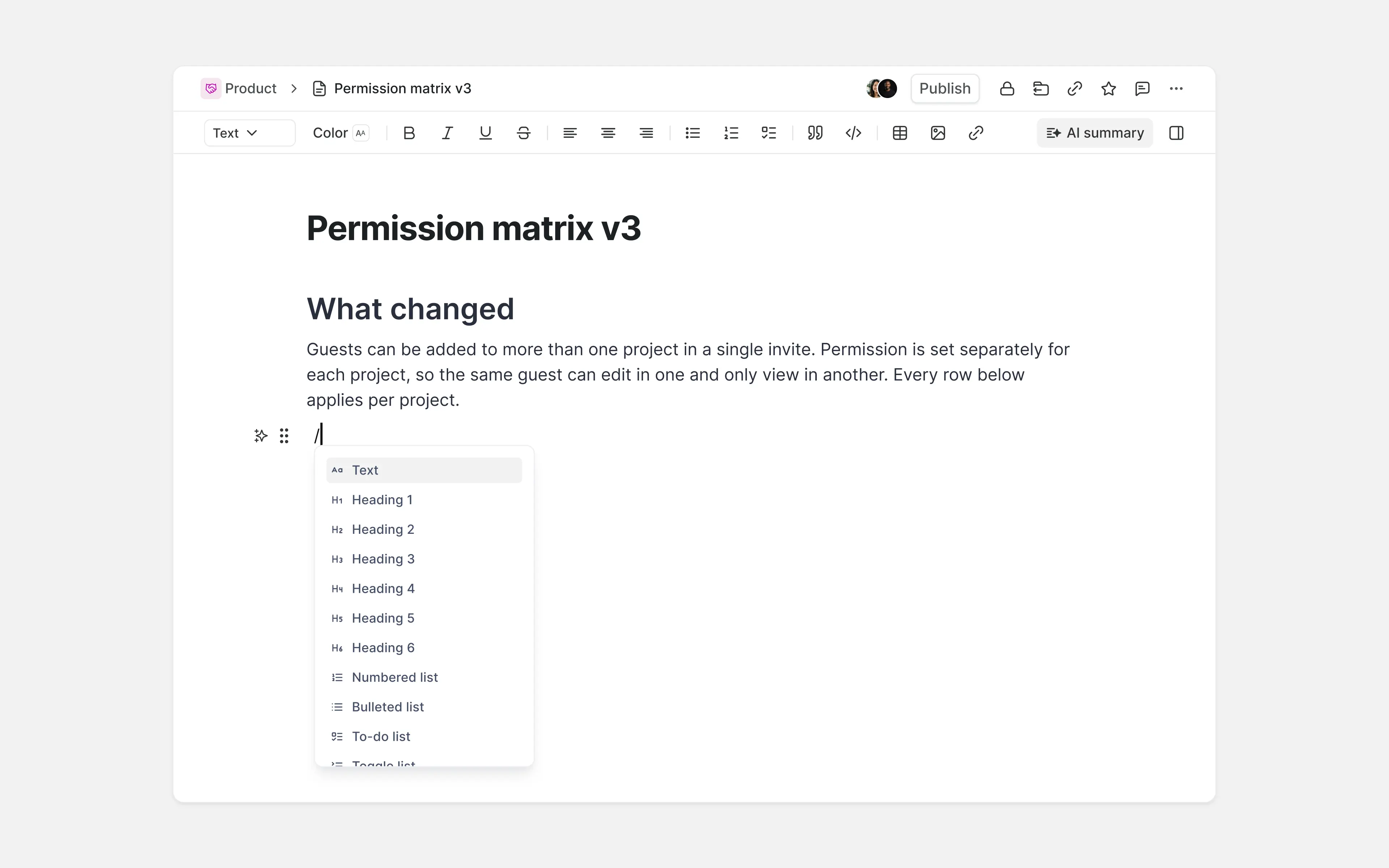
Business adds nested Pages for larger documentation structures. Add nesting when a flat structure becomes difficult to navigate.
Manage incoming requests
Give stakeholders a clear path for submitting work before requests begin arriving through direct messages, meetings, emails, and spreadsheets.
Set up Intake for each team
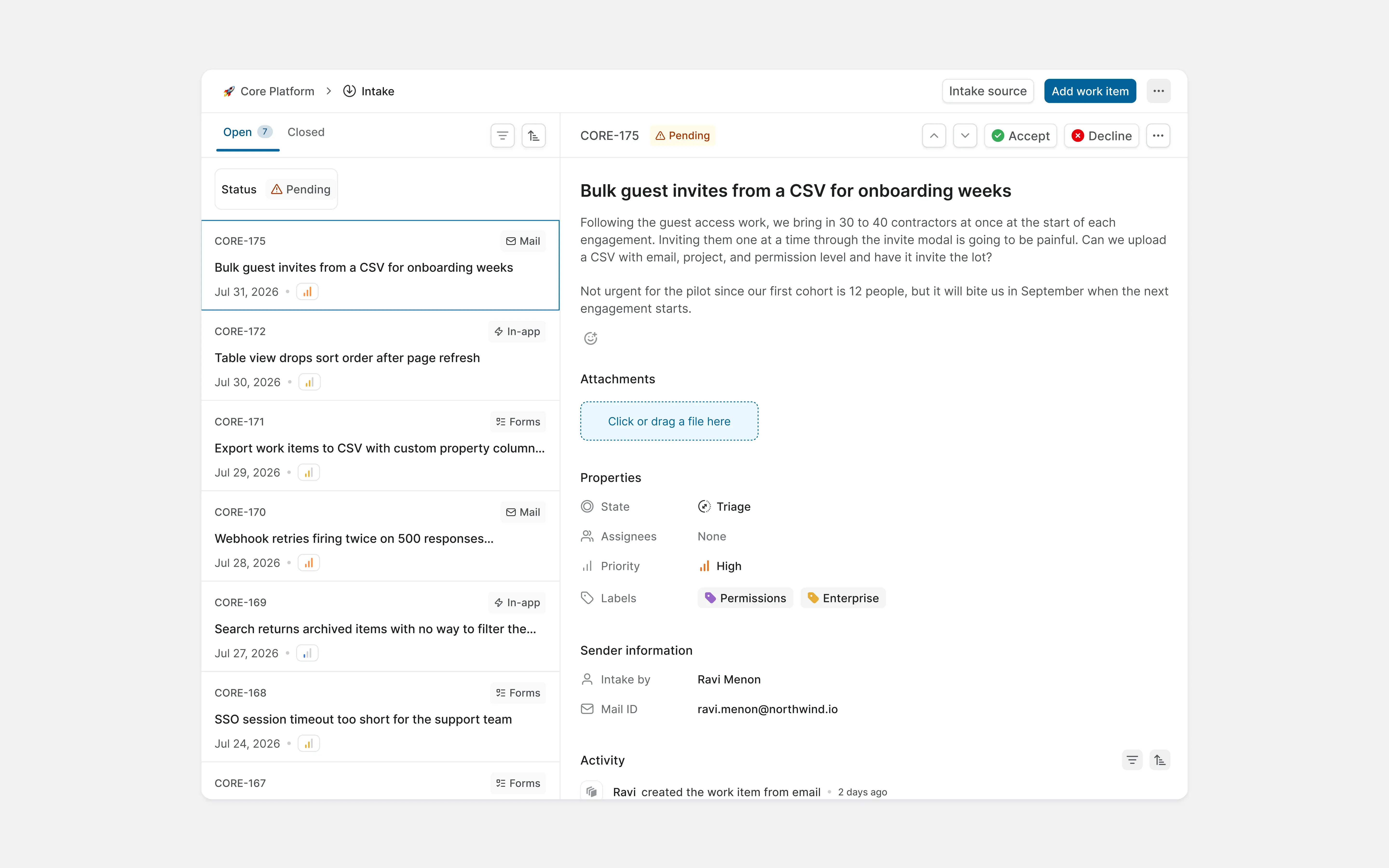
Plane Intake creates a queue where teams can review, clarify, accept, decline, or defer requests before they enter the project workflow.
In-app Intake supports requests submitted by members and guests. Business adds Intake Forms for public submissions and Intake Email for requests sent to a dedicated address.
Create separate Intake paths when teams make different decisions. Product feedback, security reviews, design requests, and platform support should not all enter one company-wide queue.
Each Intake queue needs:
- A named owner or rotation
- A response window
- Clear acceptance criteria
- A small set of request categories
- A process for duplicates and incomplete requests
- A way to communicate the outcome to the requester
Accepted requests should enter the team's normal project workflow. Intake should not become a second backlog that exists alongside the project.
Note: Intake captures demand. It does not determine priority. Teams must still compare accepted requests with existing commitments.
Review incoming requests before they enter the team's planned workflow.
Connect customer requests to delivery work
Customer profiles and request tracking are available on Business.
Use Customers in Plane to connect customer context to requests and delivery work. This helps teams answer:
- Which customers are affected?
- How many customers raised a similar request?
- Is the request connected to planned work?
- Who needs an update when the work changes?
- Which customer segments are generating the most demand?
Keep implementation work in the project that owns delivery. Customer records and requests should provide context, not create parallel copies of the same work.
Plan and organize delivery
Introduce each planning object for a specific question the team needs to answer.
Organize time-based work with Cycles
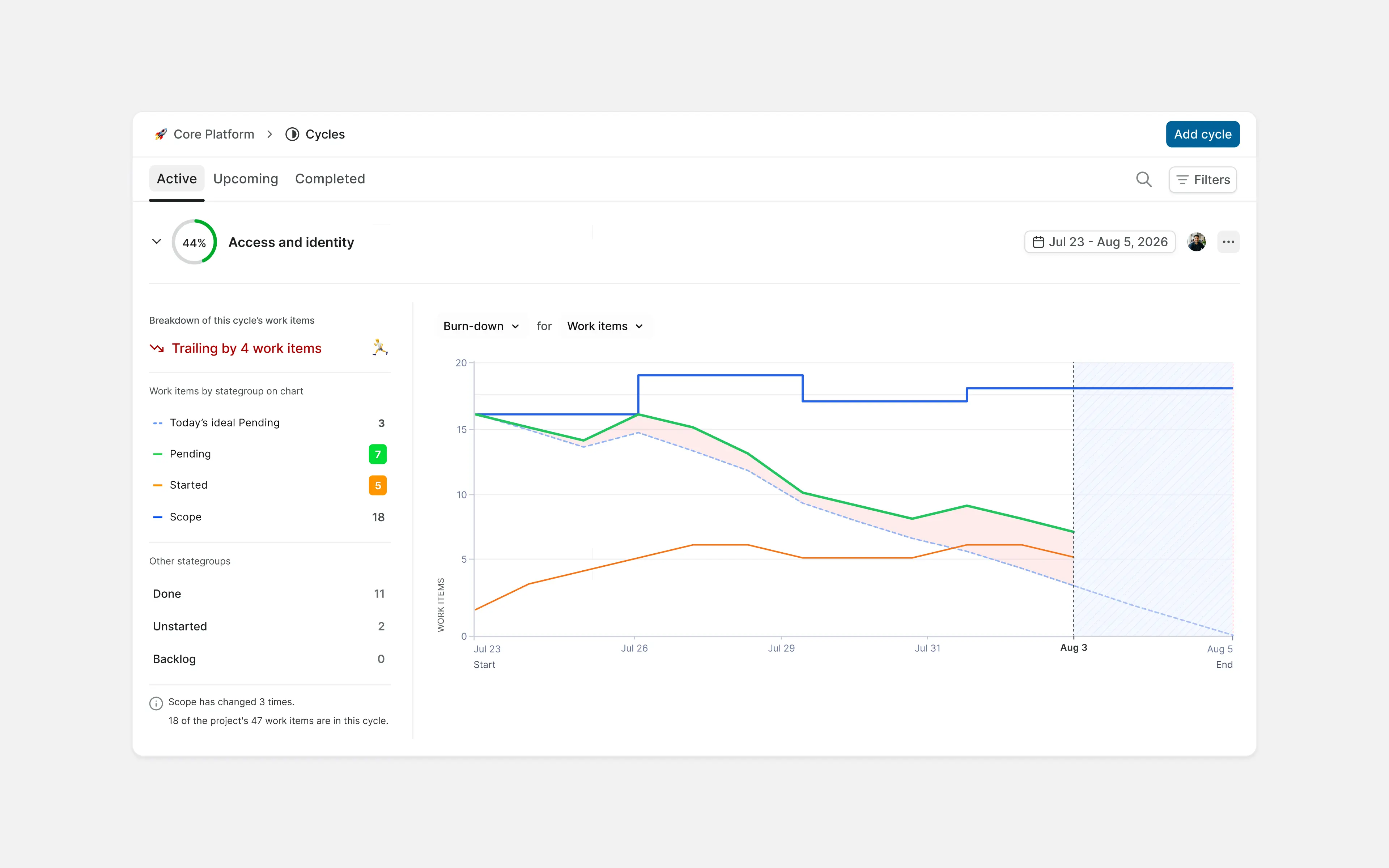
Cycles are Plane's version of a sprint: a fixed window of time with work items committed to it.
Pick a cadence and hold it, weekly, two weeks, or monthly. Each cycle gives you a commitment, a view of what was added or dropped mid-cycle, and a fixed point to review what shipped.
A project runs one cycle at a time by default. Turn on parallel cycles when two teams in one project need separate cadences, or when the next cycle needs planning while the current one closes.
Repeated carryover points at oversized work items, shifting priorities, unresolved dependencies, or more unplanned demand than the team can absorb. Read it as a signal about the work, not the person.
Cycles
Group related work with Modules
Modules group work by theme, component, feature, or deliverable. A Module spans Cycles.
A Module might represent:
- Authentication
- Mobile onboarding
- Billing migration
- Search improvements
- A launch campaign
- A backend service
Modules
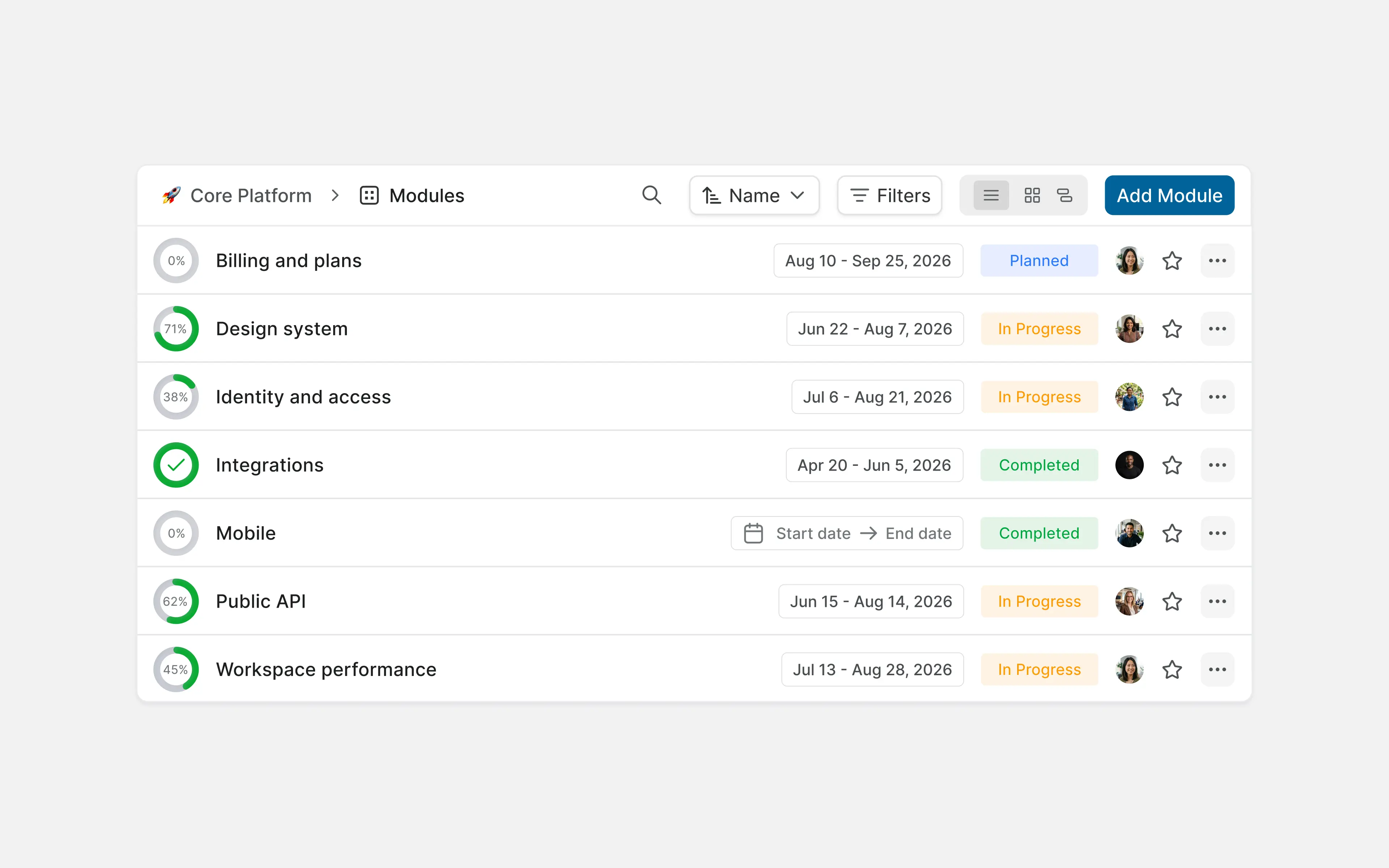
A Module can span several work items. Work can remain grouped around the same deliverable even when it is completed over multiple planning periods.
Track important dates with Milestones
Milestones align work around a meaningful target date or checkpoint
Use Milestones for:
- Product launches
- Contractual commitments
- Compliance deadlines
- Major migrations
- Quarterly deliverables
A Milestone should represent a date the company intends to manage, not every internal deadline.
Tip: If the question is "When are we working on this?", look at the Cycle. If it is "What body of work does this belong to?", look at the Module. If it is "Which important date are we working toward?", look at the Milestone.
Connect detailed work through Epics
An Epic is a Work Item Type used as a parent for a larger deliverable.
Create an Epic when a deliverable contains several related work items that need a shared owner, target date, health, and progress view.
For example, an Introduce passkeys Epic might contain work for:
- Authentication service changes
- Web settings
- Mobile support
- Recovery flows
- Analytics
- Documentation
Keep the Epic in the project that owns the outcome. Keep the Epic in the project of the team responsible for the outcome. When another team contributes, link their work items to the Epic. Their work stays on their board, and the Epic still shows everything feeding into it.
Do not create an Epic for every small group of tasks. Use it when someone needs to monitor the larger outcome independently from its individual steps.
Coordinate work across teams
Once teams manage their work consistently, connect delivery across projects and company priorities.
Track dependencies within projects
Dependencies become difficult to manage when they are discussed in meetings but not represented in the system.
Some work cannot start until other work is finished. That is what work item dependencies record.
On the item that has to wait, add the item it is waiting for. Say the dashboard needs the API endpoint first: open the dashboard item and add the endpoint. Both items now show the link, from each side.
When two items are connected but neither has to wait, use related. When the same thing was filed twice, use duplicate.
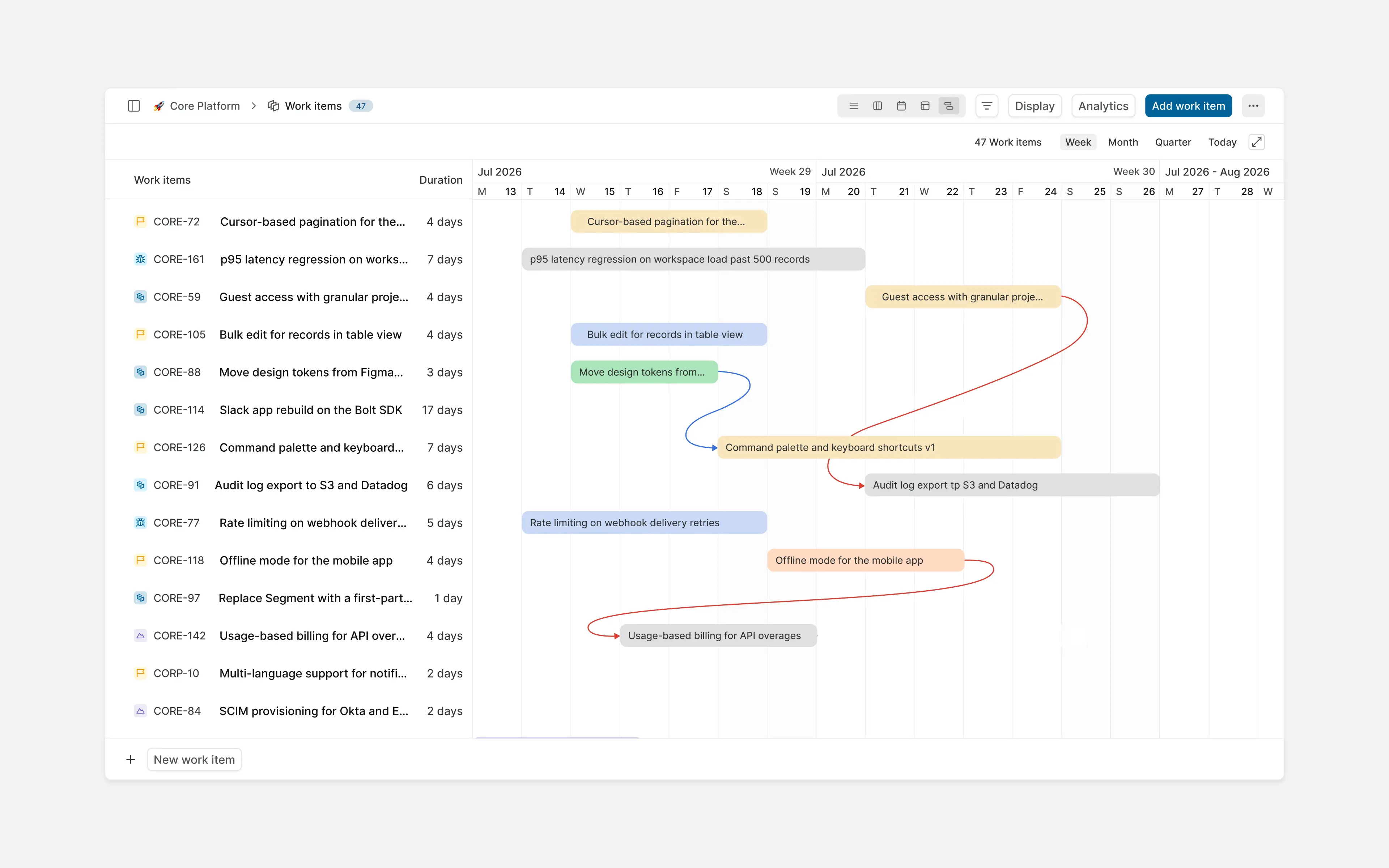
An important dependency should make four things clear:
- What is needed
- Which team owns it
- When it is expected
- What will be affected if it moves
Assign an owner on both sides of the handoff and review blocked work during planning and project updates.
Connect team execution to company priorities
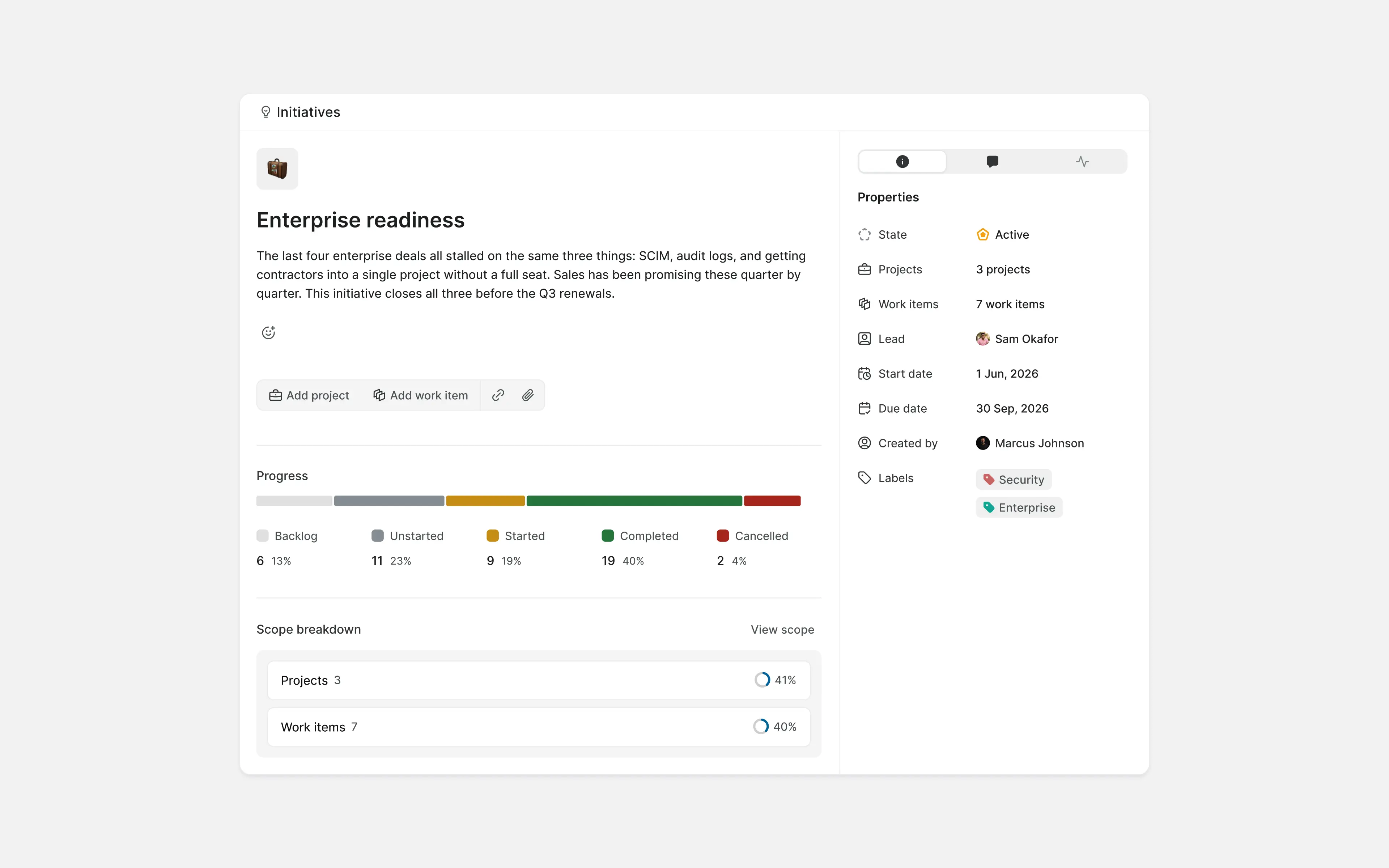
Initiatives connect related projects and work to a company-level outcome.
Create an Initiative when leadership needs to understand progress across several teams. Examples include:
- FedRAMP readiness
- GTM launch: MENA and APAC
- Zero critical vulnerabilities by end of year
- Data residency: EU and India
- Take 12 legacy services off the deprecated runtime
Each Initiative should have:
- A clear outcome
- One accountable owner
- A small set of success measures
- Connected projects or work items
- A target period
- Regular status updates
Do not create an Initiative for an individual team project. Keep the number of active Initiatives small enough that leadership can genuinely prioritize between them.
An Initiative across projects
Share project updates consistently
Project updates communicate what changed, whether a project is healthy, and where attention is needed.
A useful update covers:
- Current health
- Progress since the previous update
- The next important step
- Risks or blockers
- Decisions needed
- Changes to scope or target dates
Choose a cadence that matches the pace of the work. Weekly updates may suit an active launch, while monthly updates may be enough for longer-running internal work.
Define On Track, At Risk, and Off Track consistently. If each team interprets project health differently, company-wide reporting will be difficult to trust.
Reports
Build reporting after ownership, states, dates, and relationships are reliable.
Build Dashboards around decisions
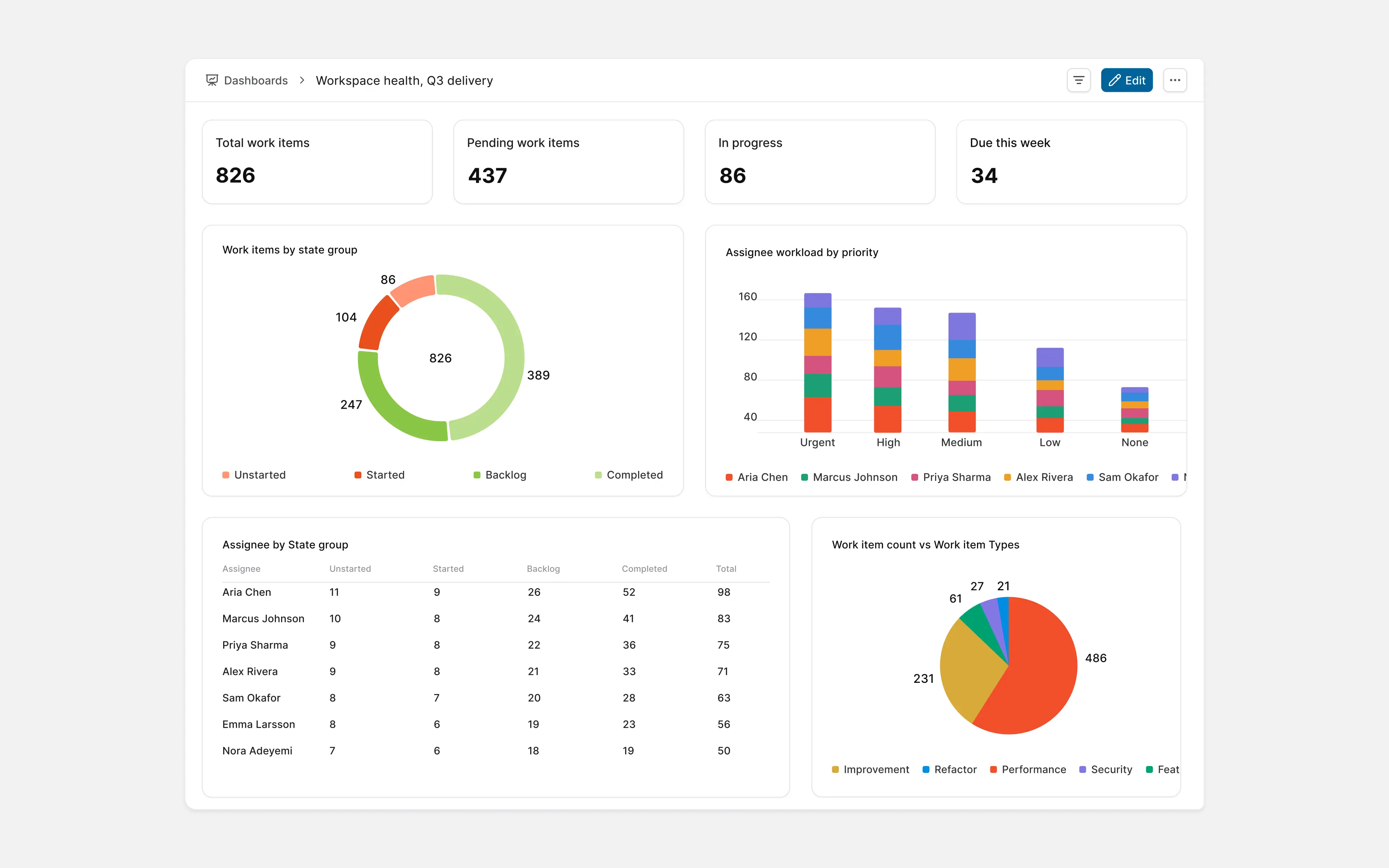
Dashboards combine information from multiple projects into charts, metrics, and tables.
Start with the question the Dashboard needs to answer. Useful examples include:
- Which high-priority work has no owner?
- What is blocked across Product Engineering?
- Which Initiatives are at risk?
- What is due this month?
- Which customer-reported bugs remain unresolved?
- How much Cycle work was added after planning?
- Where is work concentrated across products or priorities?
Different audiences need different views. Team leads may need workload, blockers, and Cycle progress. Product leadership may need Initiative progress and customer demand. Executives may need a concise view of outcomes, health, and major risks.
Keep each Dashboard focused. Remove widgets that no longer change a conversation or decision.
Business adds advanced Dashboard widgets for deeper analysis and more flexible reporting.
Note: A Dashboard can only be as reliable as its underlying data. Improve ownership, states, dates, and relationships before adding more reporting.
Build Dashboards around the decisions teams and leaders make regularly
Automate stable workflows
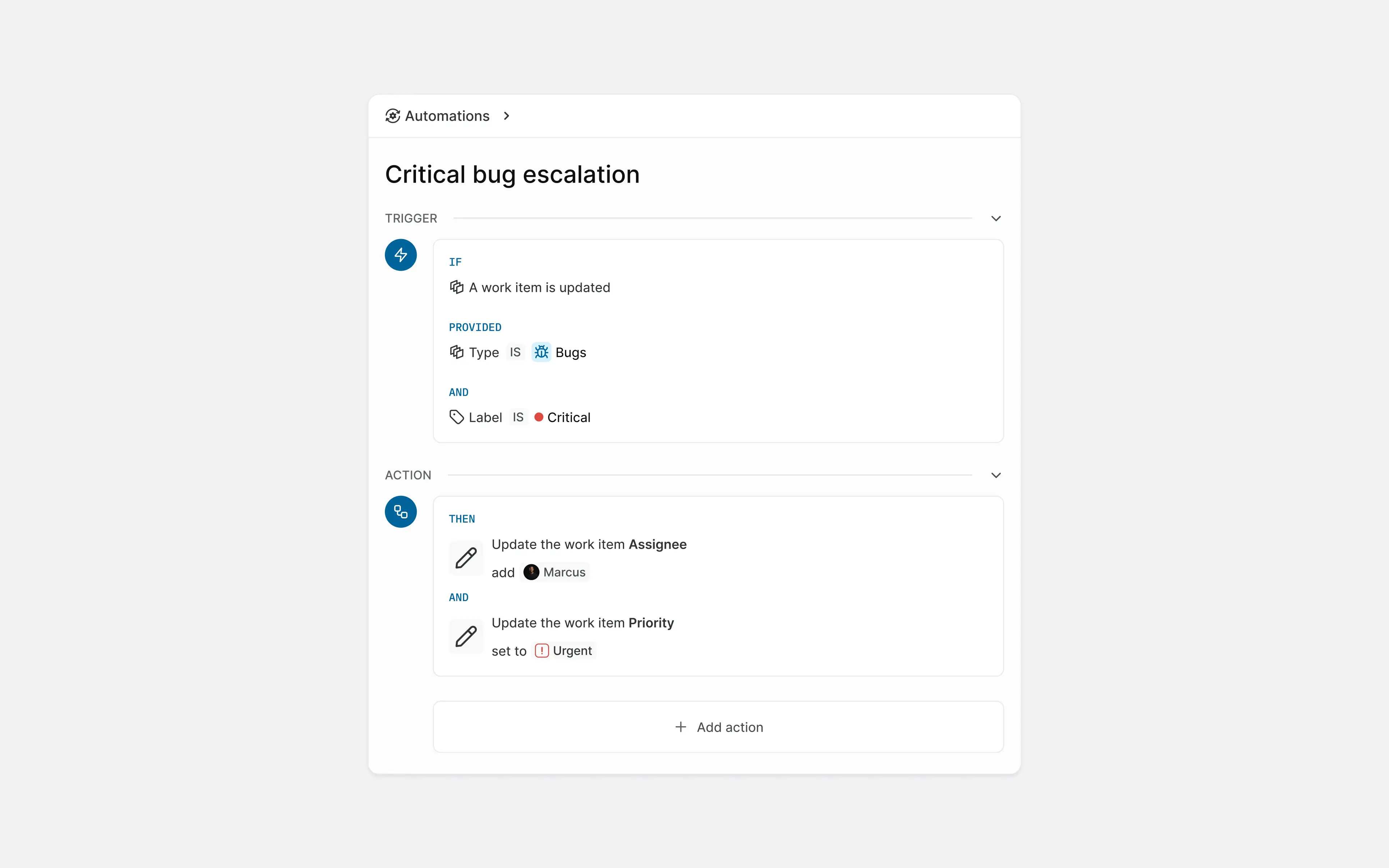
Business supports custom automations that use triggers, conditions, and actions to handle repetitive project work.
Good early automations include:
- Assigning a default owner to a specific request type
- Adding a label when a defined condition is met
- Notifying an owner when a request enters Intake
- Creating recurring operational work
- Applying a standard template to repeated work
- Moving completed work out of an active View
Start with low-risk actions that have a clear owner. Monitor the results and review automations when workflows or team responsibilities change.
Do not automate an unclear process or use automation to compensate for inconsistent data. It will reproduce the inconsistency faster.
Tip: Begin with stable processes where an incorrect action would be easy to identify and reverse.
A focused automation
Introduce Plane AI gradually
Plane AI can answer questions about Workspace data, prepare actions, generate charts, work with Pages, and help manage projects.
Begin with read-only questions that help teams evaluate the quality of their Workspace information:
- Which high-priority work items are unassigned?
- What is blocking the current Cycle?
- What shipped this week?
- Which customer requests are connected to planned work?
- How has the scope of this Cycle changed?
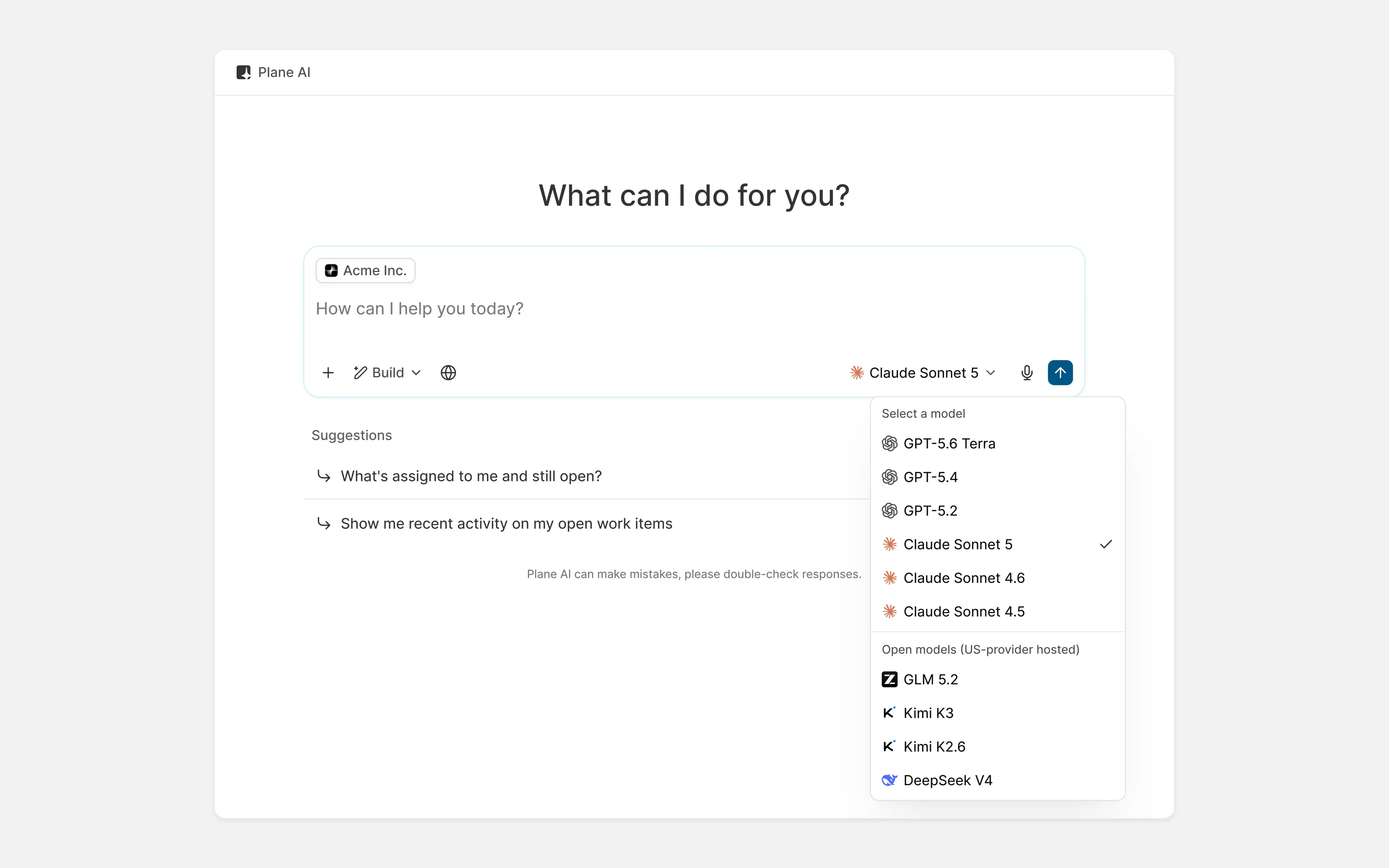
Once you are satisfied with the answers, introduce reviewed actions for clearly defined work. A person should inspect proposed changes before they are applied.
Allow autonomous actions only when the instruction is narrow, precise, and reversible. Avoid broad actions that can change several projects, owners, or commitments at once. AI works from the information in the Workspace. It cannot correct unclear priorities or missing ownership on its own.
Note: AI assistance does not transfer accountability. The project owner still owns the resulting plan, update, or Workspace change.
Roll Plane out across teams
Set up the operating model before introducing Plane across the company. Rollout should then follow a repeatable team-by-team process.
Start with a representative team
Choose a team with active work, a clear owner, and enough cross-team interaction to expose gaps in the setup.
Define:
- The project the team will work from
- The Work Item Types it needs
- A small set of states and priorities
- The work that needs to be imported
- The tools that need to connect to Plane
- The Views the team uses during planning and delivery
Run the setup through one complete planning cycle. Note what the team changes, what information people struggle to find, and which parts of the workflow they actually use.
Tip: Choose a representative team, not the simplest one. A pilot without real dependencies or incoming requests will not show whether the setup can support the rest of the company.
Build adoption through daily work
Adoption begins when Plane becomes part of the team's regular planning, reviews, and updates.
For each team:
- Assign a rollout owner
- Explain what belongs in Plane
- Provide a short onboarding Page
- Train people on the features relevant to their roles
- Collect feedback after the first planning cycle
- Remove parallel trackers once Plane is working reliably
Measure adoption through working habits, not sign-ins. Teams should update work regularly, keep ownership visible, and answer delivery questions directly from Plane.
Tip: Establish a few consistent habits first. Add more capabilities as the team becomes comfortable with the workflow.
Expand to the next team
Apply what you learned from the pilot before adding the next team.
Reuse the shared definitions that worked, but adjust the project workflow, features, Views, and training to match the work the new team owns.
Do not copy the pilot configuration. The goal is to preserve a shared operating model while giving each team enough flexibility to manage its work effectively.
Repeat the process until teams can work from Plane consistently and company-wide reporting no longer depends on separate trackers or manual status collection.
Know when Enterprise becomes necessary
A growing company does not need Enterprise simply because it has several teams.
Plane Enterprise Grid becomes relevant when governance and infrastructure requirements become formal. Common triggers include:
- Centralized identity and user provisioning
- LDAP or advanced directory requirements
- Detailed auditability
- Stricter access controls
- Managed or controlled deployment
- Formal security or compliance obligations
- Dedicated platform administration
- Multiple Workspaces requiring centralized governance
At that point, the question is no longer only how teams organize work. It is also how the company controls access, enforces policy, verifies activity, and operates Plane as shared infrastructure.
Talk to Plane about Enterprise Grid
For a governance-first walkthrough of that transition, see For enterprise teams.
Keep the operating model simple
A growing company needs coordination, but every team does not need to work in exactly the same way.
Standardize the information that must be understood across teams. Let teams shape the rest of their workflow around the work they own.
Start with real work. Add each planning layer for a specific reason. Keep ownership visible and review the system as the company changes.
The goal is not to build the most detailed Plane Workspace. It is to give teams a system they can work from every day and give the company a reliable view of what it is delivering.
Where to go from here
- Live reference: Plane's docs site. This guide is a snapshot. That page has the current pricing, seat limits, and feature availability by plan.
- Build on Plane: the developer docs, for the API, webhooks, the MCP server, and self-hosting guides.
- Talk to sales: reach out here, for Enterprise Grid scoping, migration services, or anything else this guide didn't answer.